We may earn a commission when you buy through links on this page, at no extra cost to you. How this works.
A vertical mouse rotates your hand from palm-down to a handshake position, typically between 45 and 90 degrees. The design reduces forearm pronation - the inward twisting motion that occurs when you use a traditional mouse flat on your desk. For remote professionals who spend hours clicking, dragging, and scrolling, this persistent pronation can contribute to wrist discomfort and forearm fatigue over time.
The promise is straightforward: by aligning your wrist and forearm in a more neutral posture, a vertical mouse may reduce strain during extended use. But the transition comes with trade-offs. Your hand will need time to adapt to the unfamiliar grip angle, precision tasks may feel awkward at first, and not every vertical design will suit your hand size or desk setup.
This guide explains how vertical mice work, who benefits most from the handshake grip, what to expect during the adjustment period, and the key factors to weigh before making the switch. Whether a vertical mouse is worth it depends on your current comfort level, the intensity of your mouse use, and your willingness to invest a few weeks in retraining muscle memory.
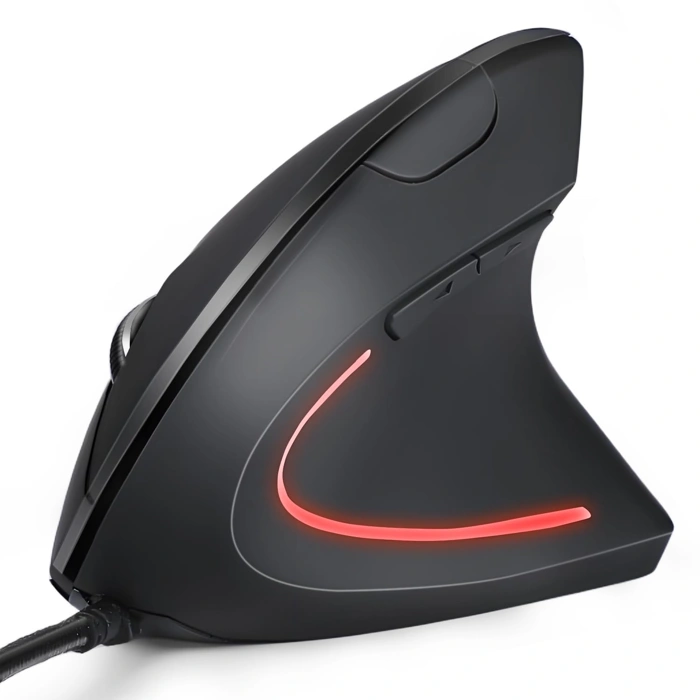
KUNSI Wired Ergonomic Vertical Mouse with 6 Buttons
The KUNSI Wired Ergonomic Vertical Mouse with 6 Buttons offers a low-cost entry point for anyone curious about vertical mouse ergonomics. Priced at $9.99, it removes the financial barrier to testing whether a handshake grip works for your workflow and wrist comfort.
The 6-button layout provides basic productivity shortcuts alongside standard left, right, and scroll functions. The wired USB connection reduces battery concerns and delivers consistent responsiveness, though the cable does limit desk mobility compared to wireless alternatives.
This mouse suits users who want to trial vertical ergonomics without significant upfront investment, or those who prefer the reliability and simplicity of a wired connection. The handshake orientation reduces forearm pronation, which may ease wrist strain during extended use.
Keep in mind that at this price point, build quality and sensor precision will be modest. The mouse works best for general productivity tasks and light browsing rather than precision work or gaming. If the vertical grip feels comfortable after a brief adjustment period, you'll know whether to invest in a higher-spec model.
- ✅ Low $9.99 price point for risk-free trial of vertical ergonomics
- ✅ Wired connection ensures consistent performance with no battery maintenance
- ✅ 6-button layout supports basic productivity shortcuts
- ⚠️ Cable limits desk mobility and workspace flexibility
- ⚠️ Build quality and sensor precision modest at this price tier
- ⚠️ Better suited to light productivity than precision tasks
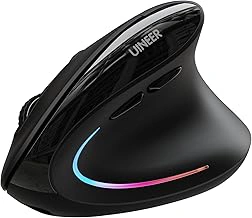
Uineer Ergonomic Wireless Bluetooth Rechargeable Vertical Mouse with LED and Adjustable DPI
The Uineer Ergonomic Wireless Bluetooth Rechargeable Vertical Mouse offers cable-free flexibility at an accessible price point. With Bluetooth connectivity and a rechargeable battery, this model reduces the need for a USB receiver or disposable batteries, making it a practical choice for users who want a cleaner desk setup or need to switch between multiple devices.
The adjustable DPI settings let you tailor cursor speed to your workflow, while LED indicators provide visual feedback on battery status and connection mode. The vertical orientation maintains the handshake grip that reduces forearm pronation, similar to wired models but without the tether. This wireless design suits remote workers, travelers, or anyone who values flexibility in their workspace layout.
At $21.99, the Uineer positions itself as a mid-tier option that balances wireless convenience with ergonomic fundamentals. The rechargeable battery removes the ongoing cost and waste of replacements, and Bluetooth compatibility works across laptops, tablets, and desktops without occupying a USB port. The 4.6/5 rating reflects solid user satisfaction, though as with any vertical mouse, there will be an adjustment period as your hand adapts to the upright posture.
This mouse fits users who have confirmed they benefit from a vertical grip and now want the freedom to work without cables. The adjustable DPI is particularly useful if you switch between detailed design work and general navigation, allowing you to match sensitivity to the task. Keep in mind that wireless mice require occasional charging, so plan to have a USB cable handy when the LED indicator signals low battery.
- ✅ Bluetooth connectivity eliminates the need for a USB receiver
- ✅ Rechargeable battery removes ongoing battery replacement costs
- ✅ Adjustable DPI accommodates varied cursor speed preferences
- ✅ LED indicators provide clear status feedback
- ✅ Priced at $21.99 for wireless convenience
- ⚠️ Requires periodic charging unlike wired models
- ⚠️ Bluetooth pairing may introduce slight latency for precision tasks
- ⚠️ Adjustment period needed for users new to vertical grip
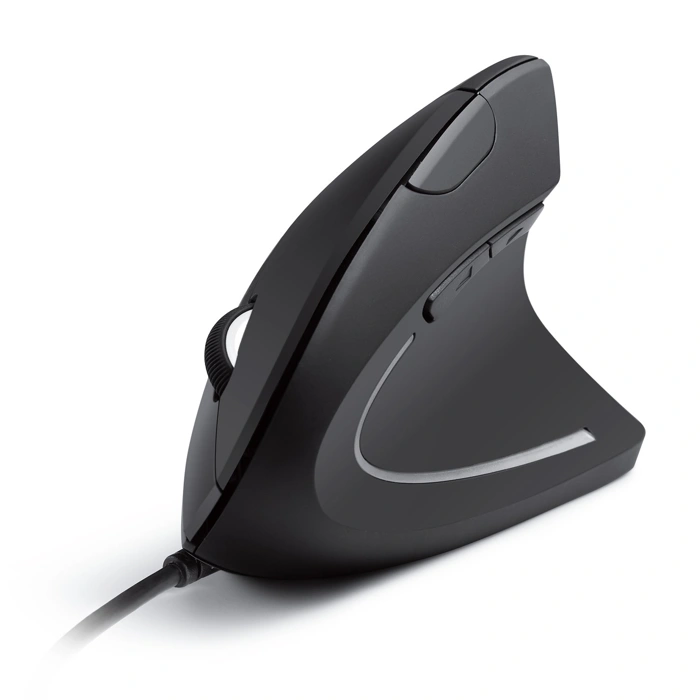
Anker USB Wired Ergonomic Vertical Mouse
The Anker USB Wired Ergonomic Vertical Mouse offers a straightforward entry into vertical mouse design at $16.99. Its wired USB connection reduces the need for batteries or Bluetooth pairing, making setup as simple as plugging into an available port. The handshake grip positions your wrist in a neutral posture, reducing the pronation common with flat mice.
Anker's reputation for reliable consumer electronics carries over to this model. The wired design delivers consistent tracking without wireless dropouts or charging interruptions, which matters during long work sessions or tight deadlines. The fixed cable length keeps the mouse tethered to your desk, so users who value mobility or multi-device flexibility may find this limiting compared to wireless alternatives.
The button layout follows a conventional vertical mouse arrangement, with primary clicks positioned for thumb and finger access. The shape supports a relaxed grip without requiring users to learn complex gesture controls or software configuration. However, the feature set remains basic - this is a reliable workhorse rather than a customizable gaming peripheral.
For users prioritizing stability and simplicity over wireless convenience, the Anker delivers dependable performance without the premium pricing of advanced models. The wired connection suits stationary workstations where cable management is already in place. If you're testing whether vertical mice suit your workflow, this model provides a low-risk introduction backed by a brand known for consistent quality.
- ✅ Wired USB connection for reliable, no-dropout tracking
- ✅ Low price point at $16.99 for ergonomic design
- ✅ Simple plug-and-play setup with no charging required
- ✅ Anker brand reputation for consumer electronics reliability
- ⚠️ Fixed cable limits mobility and multi-device use
- ⚠️ Basic feature set without programmable buttons or DPI adjustment
- ⚠️ Tethered design requires available desk-side USB port
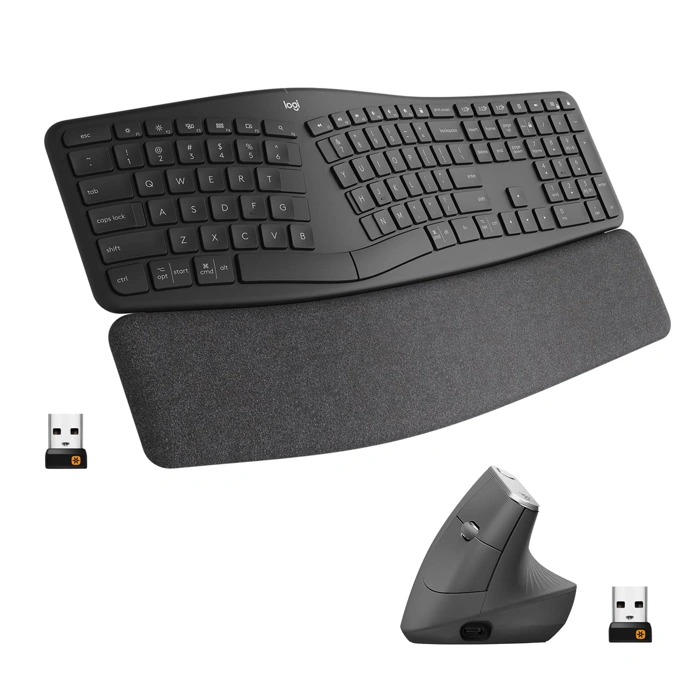
Logitech Ergo K860 Wireless Ergonomic Keyboard & MX Vertical Wireless Mouse
The Logitech Ergo K860 Wireless Ergonomic Keyboard paired with the MX Vertical Wireless Mouse forms a complete ergonomic desk setup for users ready to invest in long-term wrist and posture support. The MX Vertical's handshake grip reduces forearm pronation while maintaining precision tracking, and the K860 keyboard's split, curved layout encourages a more neutral shoulder and wrist position during typing. Together, they address the full range of repetitive strain that comes from extended computer use.
This bundle supports multi-device switching, letting you move between up to three computers or tablets without re-pairing. The keyboard includes a cushioned palm rest and adjustable tilt legs, while the vertical mouse features customizable buttons and a 4,multiple DPI sensor that works across most surfaces. Both devices connect via Bluetooth or the included USB receiver, and battery life extends to months on a single charge for the mouse and years for the keyboard with standard use.
The primary tradeoff is price - at $229.98, this is a premium investment compared to single-device or entry-level ergonomic options. The K860's wide footprint also requires ample desk space, and the vertical mouse demands an adjustment period as you retrain grip habits. However, for users committed to reducing wrist strain across both typing and mousing tasks, this ecosystem delivers coordinated ergonomic support with the build quality and connectivity features Logitech is known for.
- ✅ Complete ergonomic desk solution pairing vertical mouse with split keyboard
- ✅ Multi-device switching across up to three computers via Bluetooth or USB receiver
- ✅ MX Vertical offers precision 4,000 DPI sensor and customizable buttons
- ✅ K860 keyboard features cushioned palm rest and adjustable tilt
- ✅ Long battery life - months for mouse, years for keyboard
- ⚠️ High price point at $229.98 for the bundle
- ⚠️ K860 keyboard requires significant desk space
- ⚠️ Adjustment period needed for both vertical grip and split keyboard layout
The Problem: How Traditional Mice Contribute to Wrist Strain
Traditional flat mice require your forearm to rotate inward - a position known as pronation. When you rest your palm flat on a mouse, the radius and ulna bones in your forearm cross over one another, twisting the muscles and tendons from elbow to wrist into a sustained rotated state.
This inward rotation isn't inherently harmful in short bursts, but during extended computer use it becomes a repetitive posture held for hours each day. The muscles responsible for maintaining pronation - primarily the pronator teres and pronator quadratus - remain contracted, which can contribute to fatigue and tension in the forearm.
The wrist itself is also affected. In a pronated grip, the wrist often rests in extension (bent upward) or ulnar deviation (angled toward the pinky side) as you reach for buttons or move the mouse across the desk. These combined angles compress the carpal tunnel and place sustained load on the tendons that run through the wrist.
Over time, users may notice discomfort in the forearm, a sense of tightness along the thumb side of the wrist, or general fatigue during or after mouse-intensive tasks. The flat mouse design prioritizes compactness and tradition over neutral joint positioning, which is where the tension originates.
Understanding pronation is the first step in evaluating whether a vertical mouse - designed to reduce or eliminate this rotation - makes sense for your setup and comfort needs.
The Solution: Understanding the Handshake Position
A vertical mouse positions your hand in a handshake grip - palm facing inward, thumb on top. This orientation keeps your forearm in a neutral posture, closer to the position your arm naturally rests in when standing relaxed at your side. Unlike a traditional mouse, which requires pronation (rotating your forearm so the palm faces down), the handshake position reduces the twisting force on the radius and ulna bones in your forearm.
When your forearm stays neutral, the muscles and tendons responsible for rotating your wrist work less throughout the day. This can reduce the strain accumulation that comes from holding a pronated position for hours at a time. The vertical design aligns your wrist and forearm in a way that mimics the body's resting state, which many users find more comfortable during extended computer sessions.
It's important to understand that the handshake position is a posture-based approach to comfort, not a treatment for existing wrist or arm conditions. If you already experience pain, numbness, or other symptoms, a vertical mouse may help reduce further strain, but it won't cure or reverse any underlying issues. The benefit lies in minimizing ongoing stress on the musculoskeletal system, particularly for those who spend significant time mousing each day.
The neutral forearm position also tends to encourage better shoulder alignment, as it discourages the inward rotation that often accompanies traditional mouse use. This can contribute to a more relaxed upper body posture overall, though individual results will vary based on desk setup, monitor height, and personal ergonomics.
Key Advantages of Using a Vertical Mouse
Vertical mice shift hand position from palm-down to a neutral, handshake-like grip. This upright angle reduces the degree of forearm pronation - the inward rotation that occurs when using a standard mouse - and may ease the load on wrist extensor muscles that work to stabilize the hand during repetitive movement.
The neutral grip aligns more closely with the hand's natural resting posture, which can feel more comfortable during extended sessions. For users experiencing early-stage wrist sensitivity or mild discomfort after long hours of desktop work, a vertical mouse may help decrease strain by distributing muscle engagement differently across the forearm and hand.
Beyond immediate comfort, vertical mice encourage greater awareness of arm and shoulder positioning. Because the grip is less familiar, many users naturally adjust how they rest their elbow, position their forearm, and move from the shoulder rather than pivoting solely at the wrist. This can support better overall posture, though the degree of benefit depends heavily on existing habits, desk setup, and willingness to adapt during the initial learning period.
It is important to note that a vertical mouse is not a corrective device. It offers a different posture option that some users find more comfortable, but it will not treat or heal existing injuries, and benefits vary widely from person to person.
Potential Downsides and the Adjustment Period
Switching to a vertical mouse is not seamless. Most users report an adjustment period of one to two weeks during which the grip, cursor control, and button reach feel unfamiliar. Your hand sits in a handshake position rather than flat, and your arm compensates differently for movement - relying more on the shoulder and upper arm to steer the cursor instead of wrist rotation.
This shift in movement can feel awkward at first. Fine precision tasks - photo editing, CAD work, or design software - often suffer during the transition. The steeper grip angle and changed pivot point make pixel-perfect selections harder until muscle memory rebuilds. If your work depends on fast, accurate micro-movements, a vertical mouse may never match the control of a traditional flat design.
Button placement adds another variable. Many vertical mice relocate the side buttons or scroll wheel to accommodate the upright shape. What feels natural on one model may require thumb stretching or finger gymnastics on another. Hand size becomes critical: a vertical mouse sized for large hands will leave smaller hands reaching, while compact models may cramp larger palms.
These downsides are not dealbreakers for everyone, but they are real tradeoffs. The question is whether reduced wrist pronation and long-term comfort outweigh the learning curve and potential loss of precision for your specific tasks. A vertical mouse is a fit-and-task decision, not a universal upgrade.
Who Benefits Most from a Vertical Mouse?
Vertical mice deliver the most value to people who spend hours each day performing repetitive, low-precision cursor tasks. If you're an analyst clicking through dashboards, a writer selecting and editing text, or a developer navigating code editors and terminal windows, the handshake posture can reduce cumulative wrist strain without sacrificing the functionality you rely on.
The benefit is especially clear for users who notice early signs of discomfort - aching in the wrist or forearm after long sessions, stiffness when flexing the hand, or a sense of tightness along the thumb side of the wrist. A vertical mouse addresses pronation directly, often easing these symptoms when the discomfort is still mild and movement patterns haven't yet become entrenched.
Even if you're not experiencing pain, a vertical design can serve as a preventive measure. Writers, administrative staff, and customer support professionals who perform high-volume, low-intensity cursor work may find that switching early keeps discomfort from developing in the first place.
That said, vertical mice are less suited to tasks that demand pixel-level precision or rapid, sweeping movements. Graphic designers working in Photoshop, illustrators using a pen tablet alongside a mouse, and competitive gamers who rely on fast flicks and fine aim control will likely find the learning curve steep and the trade-off in accuracy too great. The upright grip changes leverage and reduces the fine motor control available from your fingertips, making detail work slower and less intuitive.
Similarly, users who frequently switch between a mouse and a stylus, or who work in CAD or 3D modeling software, may find that the vertical posture introduces inconsistency in their hand positioning. If your workflow depends on muscle memory built around a traditional mouse, and your wrists are currently comfortable, the adjustment period may outweigh the ergonomic benefit.
In short, vertical mice are worth serious consideration for sustained, general computing tasks where comfort and long-term wrist health take priority over split-second precision. They're a poor fit when control, speed, or creative detail work define your daily routine.
What to Consider Before Buying a Vertical Mouse
Choosing a vertical mouse requires matching the device to your hand, workspace, and workflow. Because the handshake grip feels unfamiliar at first, understanding key fit and feature criteria helps you avoid buying a model that looks ergonomic but doesn't suit your setup.
Hand size and grip compatibility matter more than design alone. Vertical mice range from compact models for smaller hands to wide, angled bodies for larger palms. A mouse that forces your fingers to stretch or your thumb to press awkwardly will undermine the posture benefit. If possible, check stated dimensions and user feedback on grip width before ordering.
Wired versus wireless affects both convenience and maintenance. Wired models eliminate battery concerns and work immediately, but the cable can add desk clutter. Wireless mice offer cleaner setups, yet you'll need to recharge or replace batteries every few weeks to months depending on use. Consider whether you have easy access to charging ports and whether cable management is already tight on your desk.
DPI adjustability becomes important when you work across multiple monitors or high-resolution screens. A fixed sensitivity may feel too slow on a large display or too twitchy on a laptop. Mice with on-the-fly DPI switching let you dial in the cursor speed that matches your screen real estate without diving into system settings.
Button count and programmability can streamline repetitive tasks. Basic vertical mice include left, right, and middle click plus a scroll wheel. Models with additional thumb buttons let you assign shortcuts for copy, paste, undo, or application switching. If your work involves frequent commands, programmable buttons reduce hand travel and clicks.
Price range spans budget options under thirty dollars to premium models above eighty. Budget vertical mice typically offer the handshake angle and basic connectivity, while higher-priced versions add adjustable tilt, extra buttons, longer battery life, and premium sensors. Decide which features solve actual workflow friction rather than choosing by price tier alone.
Return policy and trial flexibility are critical because fit and comfort only reveal themselves after several days of real use. The adjustment period means first impressions may not predict long-term satisfaction. A retailer with a hassle-free return window gives you time to evaluate whether the mouse reduces wrist strain or simply swaps one discomfort for another.
By weighing these factors against your daily tasks and desk environment, you can narrow candidates to models that address your specific ergonomic priorities rather than defaulting to the most popular or cheapest option.
Are Vertical Mice Worth It for Your Home Office Setup?
Whether a vertical mouse is worth it depends on your work habits, current comfort level, and willingness to adapt. The core benefit is clear: vertical mice reduce forearm pronation by orienting your hand in a neutral, handshake-like position. This shift in posture can reduce strain on the wrist and forearm during long sessions of repetitive mouse use.
Vertical mice are most valuable if you spend several hours a day on tasks like email, web browsing, document editing, or general office work - activities that involve frequent clicking and scrolling but don't demand pixel-level precision. If you're already experiencing mild wrist discomfort, tingling, or fatigue with a traditional mouse, switching to a vertical design may offer noticeable relief over time.
However, vertical mice are not a universal solution. The upright grip requires an adjustment period, typically one to two weeks, during which pointer accuracy and click speed may feel slower. If your work involves detailed graphic design, CAD, photo editing, or fast-paced gaming, the learning curve and reduced fine control can be frustrating. Similarly, if you're comfortable with your current mouse and have no symptoms, the benefit may not justify the transition effort.
The best approach is to treat a vertical mouse as a trial investment. Look for models with flexible return policies so you can test the fit and comfort in your actual workflow. Start with a budget-friendly option to assess whether the handshake grip feels natural and whether you notice a reduction in wrist strain after a few weeks of consistent use.
Beyond the mouse itself, remember that wrist comfort is part of a broader ergonomic picture. Desk height, chair armrest position, keyboard placement, and monitor angle all influence posture and strain. A vertical mouse works best when integrated into a well-balanced workspace setup. If you're uncertain where to start, consider reviewing guides on overall desk ergonomics and wrist positioning to ensure your entire workstation supports healthy, sustainable habits.
In summary, vertical mice are worth it for users who log long hours on repetitive, low-precision tasks and want to reduce wrist strain through a more neutral grip. They're less suited to precision work or users without current discomfort. Test a model with a return option, commit to the adjustment period, and pair the switch with broader ergonomic improvements for the best results.