We may earn a commission when you buy through links on this page, at no extra cost to you. How this works.
KEEBMONKEY WOBKEY Rainy 75 CNC Aluminum Triple-Mode Mechanical Keyboard
Mechanical keyboards aren't all loud. Learn which type fits your workspace and why switch choice matters more than keyboard category.
When you spend six to ten hours typing each day, the keyboard under your fingers affects more than just how fast you can write an email. The difference between a mechanical and membrane keyboard shows up in how your hands feel after a long afternoon, whether you can type accurately without looking, and how much noise you create during video calls.
Many remote workers assume mechanical keyboards are always loud and best suited for gamers, while membrane keyboards are quiet office tools. That oversimplification misses important distinctions. Mechanical keyboards come in dozens of switch varieties, including options quieter than many membrane models. Membrane keyboards vary widely in key feel, from mushy budget boards to responsive low-profile designs.
The right choice depends on what you type, how you type, and where you work. Someone transcribing interviews needs different feedback than someone writing code. A shared workspace requires different sound levels than a home office behind a closed door. This guide walks through the structural differences, practical tradeoffs, and real-world factors that determine which keyboard type fits your remote work setup.
Understanding switch mechanics, actuation force, and key travel helps you match a keyboard to your typing style rather than relying on broad categories or marketing labels.
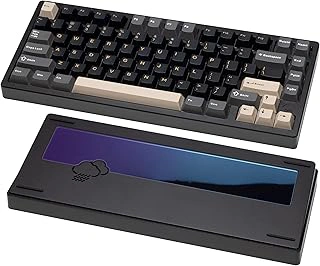
KEEBMONKEY WOBKEY Rainy 75 CNC Aluminum Triple-Mode Mechanical Keyboard
The KEEBMONKEY WOBKEY Rainy 75 combines mechanical precision with a compact footprint, built around a CNC aluminum chassis that reduces flex and dampens typing noise. The 75% layout strips away the number pad while keeping arrow keys and a full function row, useful when desk space limits your setup but navigation shortcuts matter for your workflow.
Triple-mode connectivity - wired USB-C, Bluetooth, and multiple GHz wireless - lets you switch between a desktop, laptop, and tablet without unplugging cables. Hot-swappable sockets mean you can install silent linear switches or tactile options without soldering, adjusting feedback and sound to match your tolerance for noise in a shared workspace.
The aluminum construction adds weight and stability, keeping the board planted during fast typing. Gasket-mount design and sound-dampening foam layers help quiet the clack that typically comes with mechanical switches, making this a practical choice when you want mechanical response without disturbing coworkers or family nearby.
At $139.99 with a 4.4/5 rating, the Rainy 75 fits users who prioritize build quality and flexibility over budget minimalism. If you need a mechanical keyboard that stays quiet with the right switches and doesn't sprawl across your desk, this layout and construction deliver both without requiring permanent wiring.
- ✅ CNC aluminum chassis reduces flex and dampens sound
- ✅ Triple-mode connectivity for wired, Bluetooth, and 2.4 GHz use
- ✅ Hot-swappable switches let you customize noise and feel
- ✅ 75% layout saves space while keeping arrow keys and function row
- ⚠️ Higher price than entry-level mechanical keyboards
- ⚠️ Requires separate switch purchase if you want silent operation out of the box
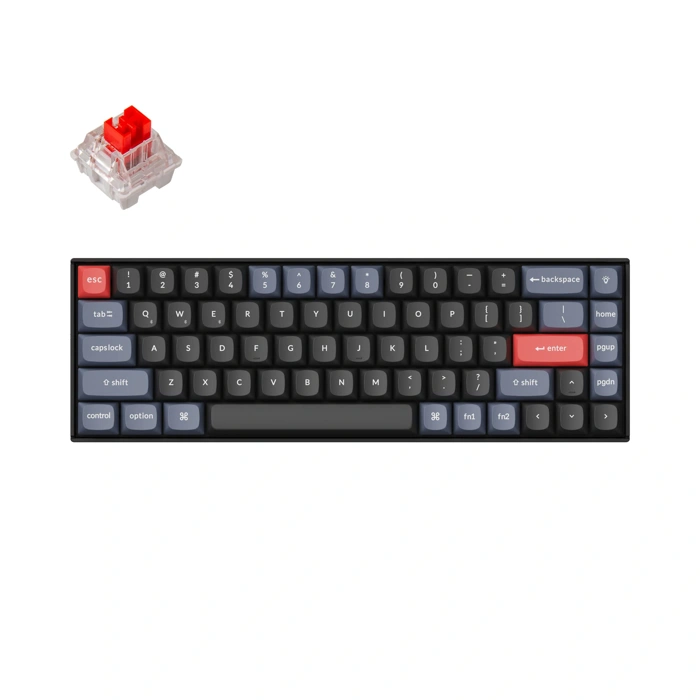
Keychron K6 Pro Wireless Custom Mechanical Keyboard
For home office workers curious about mechanical keyboards but hesitant to commit to a premium model, the Keychron K6 Pro Wireless Custom Mechanical Keyboard offers a straightforward entry point. With a 4.3 out of 5 rating across 11 reviews, this keyboard sits in the lower-cost segment of the mechanical market, making it a practical choice for anyone testing switch feel for the first time or outfitting a secondary workspace.
The keyboard delivers the core mechanical experience - tactile feedback and individual switch actuation - without the feature set or build premium found in higher-tier options. That trade makes sense if your priority is learning whether mechanical typing suits your workflow before investing more, or if you need a backup keyboard that still provides better key response than a membrane alternative.
Because verified details are limited, approach this as a value-focused tool rather than a refined daily driver. It works well for users who type intermittently, need a spare for a second desk, or want to compare switch types without spending on enthusiast-grade hardware. The rating suggests satisfactory performance in typical home office scenarios, though you won't find advanced customization, hot-swappable switches, or premium keycap materials.
This keyboard fits users who value function over refinement and want to experience mechanical actuation at a modest price point.
- ✅ Lower-cost entry into mechanical keyboards
- ✅ 4.3/5 rating indicates reliable performance for the price
- ✅ Useful for testing mechanical switches before upgrading
- ✅ Practical secondary keyboard for multi-desk setups
- ⚠️ Limited verified product details and specifications
- ⚠️ Lacks premium features like hot-swap or custom keycaps
- ⚠️ May not meet expectations for daily heavy typing use
Understanding Membrane Keyboards: The Pros and Cons
Membrane keyboards rely on a rubber or silicone dome beneath each keycap that collapses to complete a circuit on a flexible membrane layer. When you press a key, the dome compresses, makes contact with the circuit board below, and registers the keystroke. This simpler construction keeps manufacturing costs low and results in the quiet, cushioned feel most people associate with standard office keyboards.
The main advantage is noise reduction. Membrane keyboards produce minimal sound during typing, making them a practical choice for shared workspaces, video calls, or any environment where noise discipline matters. They're also lightweight, spill-resistant in many designs, and widely available at budget-friendly price points. For occasional typing tasks or users who don't spend hours at the keyboard each day, a membrane board delivers reliable input without extra investment.
The tradeoff is tactile feedback. Membrane domes require full compression to register a keystroke, which means you bottom out on every press. Over long typing sessions, this mushier, less distinct actuation can lead to slower typing speeds, more typos, and hand fatigue. The lack of a clear tactile bump or audible click makes it harder to develop a consistent rhythm, especially for touch typists or anyone writing thousands of words daily.
Durability is another factor. Rubber domes degrade over time, becoming sticky or unresponsive after a few million keystrokes - often within two to three years of heavy use. Keycaps are typically printed rather than molded, so legends fade with wear. If you're a light typist on a tight budget or prioritize silence above all else, membrane keyboards serve well. If you type frequently, value precise feedback, or want a keyboard that lasts five years or more, you'll likely outgrow the membrane design quickly.
Exploring Mechanical Keyboards: Beyond the Click
Mechanical keyboards use individual spring-loaded switches beneath each key, rather than a shared rubber dome or membrane layer. When you press a key, a physical switch triggers at a defined actuation point - typically around halfway through the keystroke - rather than requiring a full press to the bottom. This design creates consistent, repeatable feedback that many typists and professionals find easier to work with over long sessions.
Each switch contains a spring, stem, and housing that work together to register keystrokes with precision. Because the actuation happens at a specific distance, you can develop a lighter touch and avoid bottoming out every key, which may reduce finger fatigue during extended typing. The mechanical construction also contributes to durability: quality switches are often rated for 50 million keystrokes or more, compared to 5 - 10 million for typical membrane designs.
Customizability sets mechanical keyboards apart. You can choose from linear, tactile, or clicky switch types - each offering different feedback and sound profiles. Linear switches move smoothly without a bump or click, tactile switches provide a noticeable bump at actuation, and clicky switches add an audible click to the tactile bump. Some models let you swap switches without soldering, so you can adjust feel or replace a worn switch without discarding the entire keyboard.
Mechanical keyboards are not universally loud. While clicky switches produce distinct sound, linear and many tactile options run quieter, especially when paired with o-rings or dampening foam. The stereotype of constant clicking comes from a specific switch family, not the entire category. If noise is a concern in a shared home office, quieter mechanical switches can deliver the tactile benefits without disturbing others nearby.
Debunking the Myth: Not All Mechanical Keyboards Are Noisy
One of the most persistent misconceptions about mechanical keyboards is that they all sound like typewriters in a library - loud, disruptive, and impossible to use around other people. That reputation stems from a single switch type, yet mechanical keyboards actually span a wide range of noise profiles, some quieter than many membrane models.
The sound a keyboard produces depends on the switch design, not just whether it's mechanical or membrane. Clicky switches, like Cherry MX Blue or similar equivalents, create an intentional audible click with each press and are the source of the loud stereotype. Tactile switches, such as Cherry MX Brown, produce a softer bump without the sharp click. Linear switches, including Cherry MX Red or Black, move smoothly from top to bottom with no tactile event and generate minimal sound beyond the key bottoming out.
Keycap material and thickness also influence volume. Thicker PBT plastic keycaps produce a deeper, more muted sound compared to thin ABS caps. Case construction matters too - keyboards with internal foam dampening, silicone mats, or solid metal frames reduce the hollow resonance that amplifies noise. Typing technique plays a role as well; bottoming out keys forcefully creates more sound than a lighter touch that stops just past the actuation point.
If you share your workspace or take calls throughout the day, linear switches paired with a dampened case and quality keycaps can deliver the tactile consistency of mechanical keys without disrupting those around you. Silent switch variants, which include built-in rubber dampeners on the stem, further reduce both the bottom-out and return noise. The choice isn't mechanical versus quiet - it's understanding which combination of components fits your environment and how you type.
A Guide to Mechanical Switches: Reds, Browns, and Blues
Mechanical switches come in three main families that change how keys feel and sound under your fingers. Reds use a straight linear motion with no tactile bump, requiring around 45 grams of force to actuate. They're the quietest option in this group and allow fast, smooth key presses without physical feedback, which works well for long typing sessions where noise matters or when you want minimal resistance during rapid input.
Browns add a small tactile bump partway through the key press while staying relatively quiet. The bump gives you confirmation that the key has registered without the sharp click of other switches. This middle-ground design suits people who want to feel when a key actuates but can't tolerate loud typing in a shared space. The actuation force stays close to reds, usually around 45 grams, so the main difference is that tactile feedback rather than sound or effort.
Blues deliver an audible click and a pronounced tactile bump, making each key press deliberate and clear. The click happens at the actuation point, so you hear and feel exactly when the keystroke registers. This feedback can improve typing accuracy for some users, but blues are the loudest of the three and may disturb others nearby. Writers and programmers who work alone sometimes prefer blues for the satisfying confirmation, while anyone in a shared home office or on video calls will likely find them disruptive.
Your choice depends on whether you prioritize quiet operation, tactile feedback, or audible confirmation. Reds favor speed and silence, browns balance feel with moderate noise, and blues emphasize deliberate, clicky feedback at the cost of volume.
Matching Keyboard Type to Your Work Style and Environment
The keyboard that works well for a dedicated home office might disrupt a shared living room setup, and choosing the wrong type can create friction with family or colleagues on calls. Membrane keyboards fit best in shared spaces, apartments with thin walls, or roles heavy on video meetings - they produce minimal sound and won't distract others. If you're typing invoices, answering emails, or working in a bedroom-office hybrid, membrane models keep the peace without compromising function.
Mechanical keyboards with linear red or tactile brown switches work well for focused typing sessions in private or semi-private offices. Reds offer smooth, quiet keypresses ideal for longer writing tasks, while browns add tactile feedback that helps some people type more accurately without the audible click. Both types deliver better key feel than membrane options, but they still produce enough sound that roommates or partners in the next room may notice during heavy typing bursts.
Blue switches, or other clicky varieties, belong in solo offices where audible feedback helps you maintain rhythm and catch typing errors by ear. The distinct click-clack makes each keypress satisfying and deliberate, but the sound carries through doors and shows up clearly on microphone feeds. If you share your workspace during daytime hours or frequently join video calls, blues can become a liability rather than an asset.
Noise tolerance and daily typing volume should drive your choice. Low-volume typists who answer emails and fill spreadsheets may find membrane keyboards perfectly adequate, while writers, programmers, or analysts logging thousands of keystrokes a day often appreciate the reduced finger fatigue and consistent feedback of mechanical switches. Match the keyboard type to your actual environment and workload, not to what looks appealing in product photos.
How to Choose the Right Keyboard for You
Choosing between mechanical and membrane keyboards comes down to how you work, where you work, and what you're willing to spend. Membrane keyboards suit budget-conscious buyers who need a quiet workspace and don't mind a softer, less defined typing feel. They cost less upfront but typically wear out faster, especially if you type for hours every day. If your home office shares space with family or you take frequent video calls, a membrane board keeps noise low without requiring extra research into switch types.
Mechanical keyboards deliver sharper feedback, last longer, and give you control over how each key feels and sounds. Noise isn't a given - linear switches stay quiet, while tactile and clicky variants offer feedback that some typists find more comfortable during long sessions. The higher initial cost reflects better build quality and the option to replace keycaps or switches instead of the entire keyboard. If you type heavily, value precision, or want a keyboard that adapts as your preferences change, mechanical models justify the investment.
Your environment matters more than the category label. A shared workspace or open-plan home office often favors membrane or silent mechanical switches. A private room gives you freedom to prioritize feel over volume. Typing volume also plays a role: casual users may not notice membrane limitations, while anyone writing, coding, or entering data for several hours daily will appreciate the consistency mechanical switches provide. Budget remains practical - membrane boards start around twenty dollars, while quality mechanical options begin closer to sixty and climb from there.
Prioritize the tradeoffs that match your routine. If you need immediate quiet and low cost, membrane keyboards deliver without fuss. If you want a keyboard that improves comfort over time and handles years of heavy use, mechanical switches and customizable features offer better long-term value. The keyboards reviewed earlier provide practical starting points that reflect these tradeoffs, so you can match features to your actual workspace needs rather than chasing category hype.
What to Look for When Choosing a Keyboard for Your Home Office
- Switch type: linear for silence, tactile for feedback, clicky for confirmation
- Actuation force: lighter for speed, heavier for deliberate typing
- Build quality: metal cases and stabilizers reduce rattle and flex
- Hot-swappable switches: allows future customization without soldering
- Wired vs. wireless: Bluetooth adds flexibility but may introduce latency
- Key layout: full-size, tenkeyless, or 75% depending on desk space and numpad use