Remote workers who spend four or more hours each day working across two screens often develop neck stiffness, eye strain, and postural fatigue that compounds over weeks of repetitive misalignment. Dual monitor positioning directly addresses these issues by creating a workspace where your neck remains in a neutral posture, your eyes maintain equal distance to both displays, and your head rotates minimally throughout the day. This guide is written for professionals using traditional dual monitor setups - two separate rectangular displays side by side - rather than single ultra-wide monitors or gaming-oriented configurations that prioritize different ergonomic demands.
The core criteria for comfortable dual monitor positioning include maintaining a neutral neck angle that keeps your head balanced over your spine, ensuring both screens sit at equal distances from your eyes to prevent asymmetric strain, limiting head rotation to reduce cumulative stress on cervical muscles, and setting sustainable viewing angles that you can hold throughout long work sessions without compensating through forward lean or chin tilt. These principles apply whether you spend your day in spreadsheets, code editors, video calls, or design software, and they remain consistent across monitor sizes from 24 inches to 32 inches.
This article does not cover single-monitor setups, ultra-wide curved displays, or gaming configurations where immersive viewing and rapid visual scanning take precedence over sustained neutral posture. Instead, it focuses on the practical geometry and hardware choices that allow remote professionals to work productively across two screens without accumulating the repetitive strain that leads to chronic discomfort and reduced focus by mid-afternoon.
What Matters Most in Dual Monitor Positioning
Positioning two monitors correctly depends on four physical factors that directly affect how your neck and eyes work during long sessions. Monitor height should place the top edge of each screen at or just below eye level, which lets your gaze angle slightly downward - a more neutral position for your neck than looking up or tilting forward. Distance matters because placing each screen 20 to 30 inches from your eyes reduces the need to lean in or strain to read text, keeping your neck and shoulders back instead of hunched. Angle is the third factor: rotating each monitor inward by 10 to 20 degrees reduces the head turn required to shift focus from one screen to the other, minimizing repetitive neck rotation. Symmetry ties these together - centering both monitors so neither side dominates your view prevents favoring one direction, which over hours can pull your neck into an uneven posture.
Height becomes critical when you consider how often your eyes move between screens and documents. If the top of your monitors sits above eye level, you tilt your head back repeatedly, loading the muscles at the base of your skull. Too low, and you drop your chin, rounding your upper back and straining the front of your neck. The slight downward gaze that comes from positioning the top edge near eye level keeps your cervical spine closer to its natural curve.
Distance and angle work together to control how much you move your head versus your eyes. At 20 to 30 inches, text remains sharp without requiring you to push your face forward, a common cause of forward head posture. The inward tilt shortens the arc your head travels when switching screens, so you rely more on eye movement and less on neck rotation. When both monitors are angled equally and centered as a pair, your neutral forward gaze falls between them, and neither screen forces you into a twisted or side-loaded position. These four factors - height, distance, angle, and symmetry - form the foundation of any dual monitor setup that prioritizes neck comfort alongside productivity.
Step-by-Step Positioning for Symmetric Dual Monitor Use
Symmetric dual monitor positioning works best when you use both screens equally throughout the day, requiring your head and eyes to shift frequently between left and right displays. Position the two monitors so their bezels meet directly at your centerline, creating a natural pivot point that divides your workspace evenly. Angle each monitor inward between 10 and 20 degrees, forming a gentle arc that keeps both screens equidistant from your eyes and reduces the need for full head rotation when switching focus.
Align the top edge of each monitor at or just below eye level when seated upright. This height ensures your gaze angles slightly downward - typically 10 to 20 degrees - which encourages a neutral neck posture and reduces strain on the upper trapezius and levator scapulae muscles. If the monitors sit too low, you'll tilt your head down repeatedly; too high, and you'll extend your neck backward, compressing the cervical spine.
Maintain equal distance from your seated position to each screen, typically 20 to 30 inches depending on monitor size and your visual acuity. Use a tape measure or arm's length as a reference to confirm both monitors are the same distance from the front edge of your desk. Unequal distances force one eye to work harder and can introduce asymmetric neck tension over time.
Match brightness, contrast, and color temperature across both displays to minimize eye strain when shifting between screens. Inconsistent settings cause your pupils to adjust repeatedly, which often leads to squinting, leaning forward, or tilting your head to compensate for glare or dim content.
Test your setup by sitting in your normal working position and noting where your eyes naturally land when looking straight ahead. The junction between the two monitors should align with that midline. If you find yourself rotating your neck more than 35 degrees to view content on either screen, the monitors are angled too wide or positioned too far apart. Adjust inward angles or slide the monitors closer together until head movement feels balanced and minimal.
Positioning for Primary-Secondary Monitor Workflows
When one monitor handles 80% or more of your work, positioning it directly in front of you at optimal height and distance minimizes neck strain during the majority of your workday. The secondary screen should support quick reference tasks without forcing you into sustained rotation or awkward postures.
Place your primary monitor centered on your seated position, with the top of the screen at or just below eye level and the display 20 to 30 inches from your eyes. This straight-ahead placement keeps your neck in a neutral position for the tasks that consume most of your time - writing documents, managing spreadsheets, or browsing primary applications.
Position the secondary monitor 30 to 40 degrees to the side of your primary screen, angled slightly inward so you can see it with a head turn rather than a full torso rotation. If the secondary display is used only for occasional glances at chat windows, email notifications, or reference documents, placing it slightly lower or a few inches farther back reduces the temptation to hold your neck in rotation for extended periods.
The tradeoff is clear: you gain maximum comfort and efficiency on primary tasks at the cost of a brief head turn when checking the secondary display. This asymmetric setup works well for roles where one application or workflow dominates - such as coding with documentation on the side, video editing with a timeline in front and bins to the side, or data entry with a reference sheet nearby.
Avoid placing the secondary monitor at extreme angles beyond 45 degrees or so far to the side that you must twist your shoulders to view it. Sustained twisting couples neck rotation with upper-back tension, eroding the ergonomic benefit of the dual-monitor arrangement. If you find yourself turning to the secondary screen for more than a few seconds at a time throughout the day, re-evaluate whether that monitor should be repositioned closer to center or whether your workflow has shifted enough to justify swapping the primary and secondary roles.
Test the configuration by working through a typical hour: if your neck feels neutral most of the time and side glances feel quick and unstrained, the setup supports your actual usage pattern.
Common Mistakes That Increase Neck Strain
Monitors placed at unequal heights force your neck to tilt or rotate constantly as you shift your gaze between screens, creating fatigue even during short sessions. When one display sits noticeably higher or lower than the other, your cervical spine compensates with sustained asymmetric postures that accumulate strain over hours.
Excessive inward or outward angles compound the problem by widening the horizontal sweep your eyes and neck must cover. Angling screens too steeply - more than 30 degrees from perpendicular - pushes the edges of your visual field outward, requiring frequent head turns rather than simple eye movements. This pattern increases the frequency and range of neck rotation, accelerating muscle fatigue.
Placing one screen too far to the side disrupts the natural balance of a dual-monitor setup. If your secondary display sits beyond comfortable peripheral reach, you twist your torso or crane your neck repeatedly to read content, transforming occasional glances into sustained awkward postures. The same issue arises when both monitors are positioned too high or too low: your head tilts forward or backward to maintain focus, loading the neck extensors or flexors unevenly.
Ignoring primary screen hierarchy creates another layer of strain. If you spend most of your time on one monitor but position both equally in front of you, your neck remains rotated toward the dominant screen for long stretches. Placing your primary display directly ahead and the secondary at a slight angle reduces the cumulative rotation and keeps your neutral posture aligned with your most-used workspace.
Each of these mistakes shares a common outcome: they replace brief, varied neck movements with prolonged, repetitive postures that overload specific muscle groups. Recognizing these errors lets you design a setup that distributes the workload more evenly and keeps your neck within a comfortable range of motion throughout the day.
Final Takeaway
Positioning dual monitors for neck comfort starts with matching the top edge of each screen to eye level or just below, keeping both displays at the same viewing distance to avoid constant refocus strain. Angle each monitor slightly inward so your eyes reach the center of either screen with minimal head rotation, and place your primary display directly in front of your sternum to reduce asymmetric neck load throughout the day.
When desk stands lack the height or tilt range needed for neutral posture, adjustable monitor arms or VESA mounts provide the vertical and rotational flexibility to sustain comfortable positioning across different tasks. Assign screen real estate based on task frequency: your main workflow belongs on the primary monitor, while secondary references stay on the adjacent display to limit repetitive turning.
Reassess your setup periodically as work patterns shift, desk furniture changes, or seating height is adjusted. Small tweaks to angle, distance, or screen height can prevent cumulative strain and maintain the productivity gains that dual monitors offer without sacrificing neck comfort during long sessions.
Pre-Setup: What to Measure and Check First
- Measure your seated eye height from desk surface
- Confirm both monitors have VESA mounting holes or check stand adjustability
- Verify desk depth allows 20-30 inch viewing distance for both screens
- Check available video outputs on your computer match monitor inputs
- Identify your primary vs secondary screen based on task frequency
- Ensure desk space accommodates both monitors without overlap or extreme angles
Post-Setup: Fine-Tuning Your Position
- Sit in your normal working position and check if both screen tops are at or just below eye level
- Extend your arm - fingertips should nearly touch the center of each screen at comfortable distance
- Turn your eyes (not head) from center to each screen edge; head rotation should be minimal
- Work for 30 minutes and note any neck tilting or leaning patterns
- Adjust monitor angles inward if you find yourself turning your head frequently
- Revisit chair height and backrest to ensure monitor position doesn't force slouching
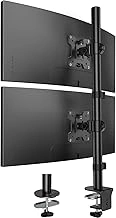
HUANUO Vertical Dual Monitor Mount for 2 Monitors with Height Adjustment
The HUANUO Vertical Dual Monitor Mount offers independent height adjustment for each screen, making it a practical choice when you need to align both monitors at eye level without the footprint of two separate desk stands. Each arm adjusts vertically along a pole, so you can set the top edge of each display at or slightly below eye level - critical for reducing forward head tilt during long work sessions.
This mount supports vertical stacking, which suits narrow desks or tight corner setups where side-by-side placement isn't possible. However, stacking monitors vertically requires more upward or downward gaze shifts than a horizontal arrangement, which can increase neck strain if the screens are spaced too far apart. If you choose vertical orientation, position the primary monitor directly at eye level and keep the secondary screen close enough to minimize head movement.
The mount is compatible with VESA standard VESA and standard VESA patterns and supports monitors from the listed size, with a weight capacity of up to the listed size per arm. The clamp-style desk attachment works with surfaces up to the listed size thick, and the arms tilt ±multiple°, swivel multiple°, and rotate multiple° for fine-tuning angle and distance. At $37.99 with a 4.6/5 rating, it delivers flexible height control at a lower cost than many dual-arm mounts. Check current price and compatibility to confirm your monitors fall within the size and weight limits before ordering.
- ✅ Independent height adjustment for each monitor
- ✅ Supports VESA 75x75 mm and 100x100 mm
- ✅ Vertical stacking option for narrow desks
- ✅ Tilt, swivel, and rotate for angle control
- ✅ Priced at $37.99
- ⚠️ Vertical stacking increases upward/downward gaze shifts
- ⚠️ 17.6 lbs per arm weight limit may exclude larger displays
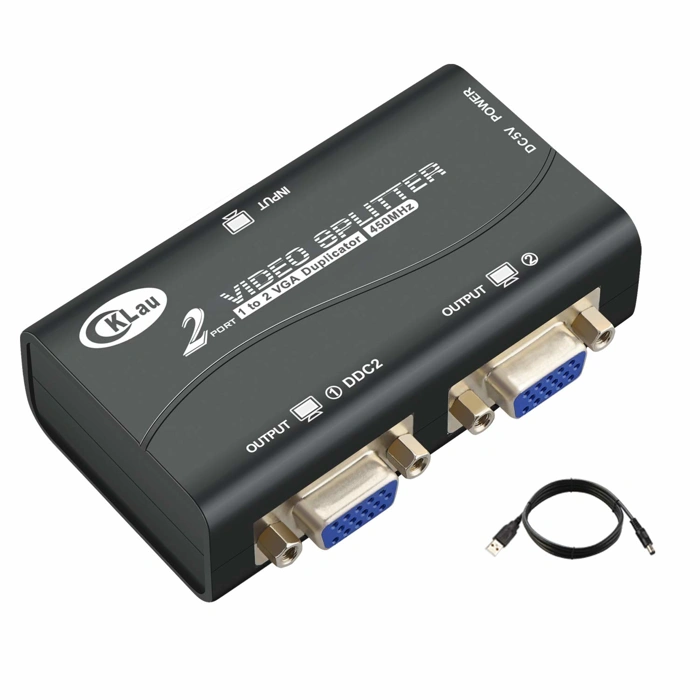
CKLau 2 Port VGA Splitter Amplifier Box for 1 PC to 2 Monitors
The CKLau 2 Port VGA Splitter Amplifier Box connects one VGA output to two monitors, duplicating the same image on both screens. This device addresses a specific need: legacy computers or systems with only a single VGA port that require mirrored displays for presentations, training setups, or simultaneous viewing of identical content.
Understanding the limitation is critical. This splitter creates a mirrored display, not an extended desktop. Both monitors show exactly the same content at the same resolution. If your goal is spreading a workspace across two screens - one monitor for email, another for spreadsheets - this hardware will not deliver that workflow. For true dual-monitor ergonomics where you position different applications on separate screens, your computer needs two distinct video outputs or a graphics card that supports extended mode.
The VGA-only interface suits older desktop systems, industrial equipment, or point-of-sale terminals still using analog video. Modern laptops and desktops with HDMI, DisplayPort, or USB-C outputs require separate adapters or different hardware entirely. The 4.3/5 rating and $18.40 price point reflect straightforward functionality for the narrow use case it serves.
From a neck comfort perspective, mirrored monitors offer minimal ergonomic advantage in typical office work. You cannot distribute tasks across screens or reduce head rotation between applications. The setup works when both viewers need to see the same information simultaneously - a trainer and trainee, for example - but does not reduce the visual scanning or neck movement that extended dual-monitor arrangements address.
If your system has VGA output and you need identical content on two displays for reference or collaboration, this splitter performs that single function reliably. For productivity workflows that rely on independent screen real estate and reduced neck strain through better task distribution, invest in hardware that supports true extended desktop mode instead.
- ✅ Mirrors one VGA signal to two monitors at $18.40
- ✅ Supports legacy systems with single VGA output
- ✅ Simple plug-and-play operation for identical displays
- ⚠️ Creates mirrored display only, not extended desktop
- ⚠️ VGA-only interface incompatible with modern HDMI or DisplayPort systems
- ⚠️ Offers no ergonomic benefit for typical dual-monitor productivity workflows
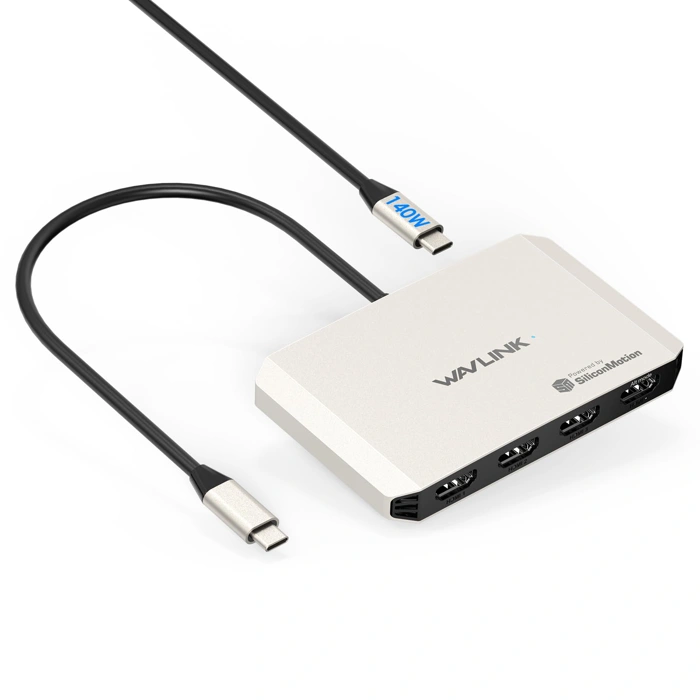
WAVLINK 4 Monitor Docking Station Adapter for M1/M2/M3/M4 macOS, 4 HDMI Quad 4K
Mac users working with M1, M2, M3, or M4 chips face built-in limitations on native multi-monitor support, and the WAVLINK 4 Monitor Docking Station Adapter offers a single-cable solution that extends display capability up to four external monitors. This adapter connects via a single USB cable and provides four HDMI outputs, each supporting 4K resolution, which makes it possible to arrange dual - or even triple or quad - monitor setups without relying on daisy-chaining or multiple adapters.
The adapter is priced at $99.99 and carries a 4.4 out of 5 rating. Because it bypasses macOS chip constraints on native video output, it enables you to position two or more displays at equal height and distance without hardware conflicts. Each HDMI port handles independent 4K signals, so you can orient monitors side-by-side, stacked vertically, or in an asymmetric arrangement depending on your desk layout and neck comfort priorities.
Setup involves installing DisplayLink driver software on macOS, then connecting your monitors to any of the four HDMI ports. Once recognized, macOS treats each display as a separate screen in System Settings, allowing you to configure primary and secondary monitor roles, adjust resolution per display, and set arrangement to minimize head rotation. The single upstream USB connection reduces cable clutter compared to plugging individual adapters into separate ports.
Because the adapter uses USB bandwidth and software-based display compression, video playback and high-motion graphics may show slightly more latency compared to Thunderbolt or native HDMI output. For productivity tasks - spreadsheets, documents, code editors, and browser windows - the performance remains smooth enough that most users will not notice a difference. If your work centers on static content and you value the flexibility to add extra screens as your workflow evolves, this adapter provides room to grow beyond a simple dual-monitor pair.
The $99.99 price reflects the multi-monitor capability and macOS-specific engineering required to work around Apple silicon's native output limits. If you only plan to use two displays and your Mac already supports that natively, a simpler dock or direct cable will cost less and deliver lower latency. If you need three or four screens, or you want the insurance of extra ports for future expansion, the WAVLINK adapter consolidates everything into one USB connection and keeps your desk positioning options open.
- ✅ Enables up to four 4K HDMI displays from a single USB connection on M1/M2/M3/M4 Macs
- ✅ Bypasses native macOS chip limitations on multi-monitor output
- ✅ Independent HDMI ports allow flexible positioning and height arrangements
- ✅ Reduces cable clutter compared to multiple separate adapters
- ⚠️ Requires DisplayLink driver software on macOS
- ⚠️ USB-based video may introduce slight latency during high-motion content
- ⚠️ Higher price point than basic docks if you only need two displays
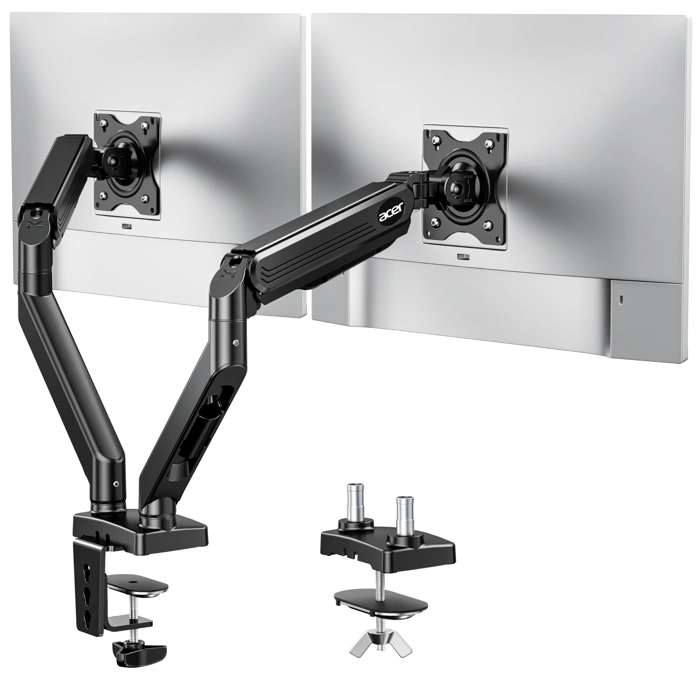
Acer Dual Gas Spring Monitor Arm with VESA Mounts
The Acer Dual Gas Spring Monitor Arm with VESA Mounts offers an accessible entry point for users who need to reposition their displays throughout the day without locking into fixed angles. The gas spring mechanism enables height adjustments without requiring tools or manual tightening, which is useful when alternating between seated and standing postures or shifting monitor tilt to reduce neck extension during different tasks.
VESA mount compatibility allows the arm to support a range of monitor sizes and brands, making it a flexible option if you plan to upgrade displays later. The dual-arm design maintains independent adjustment per screen, so each monitor can be angled and positioned to match your primary and secondary viewing needs. This independence helps preserve the symmetric angles and matched heights that reduce lateral neck rotation and shoulder imbalance.
At $55.99, the arm balances affordability with functional range of motion. The 4.5/5 rating reflects consistent performance for everyday repositioning, though users with very heavy or ultra-wide monitors should verify weight capacity before purchase. The gas spring tension may require occasional recalibration over time to maintain effortless lift, but the mechanism avoids the stiffness common in friction-only designs.
This arm suits remote workers and hybrid users who shift tasks frequently - moving from document editing to video calls to collaborative screen sharing - and need their monitors to move with them rather than forcing posture compromises. The combination of tool-free adjustment and independent arm control makes it practical for maintaining neck-neutral positions across varied workflows.
- ✅ Gas spring mechanism allows tool-free height changes
- ✅ Independent dual-arm adjustment for symmetric positioning
- ✅ VESA compatibility supports various monitor sizes
- ✅ Affordable at $55.99
- ⚠️ Gas spring tension may need recalibration over time
- ⚠️ Weight capacity should be verified for heavier monitors