We may earn a commission when you buy through links on this page, at no extra cost to you. How this works.
Colorpanda Eye-Care USB LED Monitor Light Bar with Touch Control for Curved/Flat Screens
Four monitor light bars tested for glare reduction, desk lighting quality, and control flexibility.
Monitor light bars sit above your display and cast light downward onto your desk, illuminating your workspace without creating screen glare or consuming valuable desk surface. Unlike traditional desk lamps, these devices clip or rest on top of your monitor, directing light away from the screen and toward your keyboard, notes, and work materials.
Screen glare and inadequate task lighting are common problems in remote work setups. Overhead lighting often reflects off monitors, forcing you to squint or adjust your position throughout the day. Traditional desk lamps take up space and frequently shine directly into your eyes or onto the display. Monitor light bars solve both issues by positioning the light source behind your line of sight and angling illumination specifically at the desk surface.
This guide compares four monitor light bars across different use cases. The selection includes a best overall option for standard flat monitors, a model engineered specifically for curved displays, a budget-friendly pick that delivers core functionality without premium features, and a customization-focused bar for users who want granular control over color temperature and brightness. Each product addresses the same fundamental need but differs in compatibility, adjustment method, brightness range, and whether it offers automatic dimming based on ambient light.
The comparison focuses on four practical criteria: monitor compatibility (flat versus curved screens, thickness tolerance), control method (touch-sensitive controls, physical dials, wireless remotes, or app integration), brightness and color temperature range (measured in lumens and Kelvin when specifications are available), and auto-dimming capability (presence of ambient light sensors that adjust output automatically). These attributes determine how well a light bar fits your specific monitor, how conveniently you can adjust lighting throughout the day, and whether the device adapts to changing room conditions or requires manual intervention.
How Monitor Light Bars Reduce Glare and Improve Workspace Comfort
Monitor light bars solve a problem that standard desk lamps and overhead lighting often create: glare on your screen. Unlike traditional task lights that shine from the side or above and bounce light directly off your monitor, light bars mount on top of your display and cast light asymmetrically - downward onto your desk surface while keeping the beam away from the screen itself.
This directional design means the light illuminates your keyboard, documents, and workspace without reflecting back into your eyes. The result is a more comfortable viewing experience, especially during long work sessions when eye strain from competing light sources adds up.
Because the light bar sits directly on your monitor, it also frees up valuable desk real estate. You won't need a separate lamp base taking up space, and cables stay minimal. For remote workers juggling multiple devices, notebooks, or reference materials, that extra room makes a tangible difference in how you organize your workspace.
Compared to overhead room lighting, which creates uneven shadows and often forces you to adjust screen brightness to compensate, a monitor light bar gives you focused, adjustable illumination exactly where you need it. You can dial the brightness and color temperature to match your task - warmer tones for evening work, cooler light for detailed tasks - without flooding the entire room or causing screen washout.
The key advantage is control. You decide how much light hits your desk, and the asymmetric throw ensures your monitor stays clear and readable. For anyone who's struggled with glare from a window, a desk lamp that creates hotspots on the screen, or the fatigue that comes from constantly squinting at a dim workspace, a well-designed light bar offers a straightforward fix.
How to Position Your Monitor Light Bar for Optimal Glare Reduction
Proper positioning transforms a monitor light bar from a decent accessory into a genuinely helpful workspace upgrade. Most installation mistakes come down to two issues: mounting the bar too far forward or backward, and setting the tilt angle without checking for screen reflections.
Start by centering the light bar on your monitor. Most clip-on designs sit flush against the top bezel, but if your monitor has a curved back or unusual thickness, test the grip before routing cables. The bar should feel stable when you adjust it - any wobble means the counterweight or clip tension needs adjustment.
Tilt is where glare reduction actually happens. Aim the light down toward your keyboard and desk surface, not straight ahead. A good starting angle is about 25 - 30 degrees from vertical. Sit in your normal position and look at your screen: if you see a bright reflection of the light bar itself, tilt it down further. The goal is to illuminate your work area while keeping the light source outside your direct line of sight to the monitor.
Test your positioning at different times of day, especially if your desk faces a window. Morning sunlight or late-afternoon glare can reveal reflections you missed during evening setup. Auto-dimming models will adapt to changing conditions, but manual bars need a brightness level that works across your typical work hours.
Cable routing matters more than it seems. Run the USB cable along the back of your monitor arm or down the monitor stand to avoid a dangling cord in your field of view. If your monitor's built-in USB ports are inconvenient or underpowered, use a nearby port on your computer or a powered hub. Most light bars draw minimal current, but check the spec if you're daisy-chaining multiple USB devices.
For curved monitors, pay extra attention to the clip mechanism. Some bars include adapter pieces or adjustable grips for curved backs. If the fit feels loose, a small adhesive bumper on the clip contact point can improve stability without permanent modification.
Finally, give yourself a week to adjust. Your ideal brightness and angle will become clear once you've worked through different tasks - bright spreadsheets, dark video calls, and late-night coding sessions all make different demands. Small tweaks to tilt and brightness often make a bigger difference than switching to a different model.
Comparing Control Methods: Touch vs Remote vs Auto-Dimming
Choosing the right control method is just as important as picking the right brightness level - it directly affects how often you'll actually adjust your light bar throughout the day. The three main approaches offer distinct tradeoffs in convenience, desk real estate, and price.
Touch controls place buttons or sliders directly on the light bar itself. This keeps your desk uncluttered and eliminates the risk of misplacing a remote, but it requires you to reach up and forward every time you want to change brightness or color temperature. For users who set their lighting once in the morning and rarely adjust it, this works perfectly fine. However, if you move between tasks that need different lighting - video calls, reading documents, late-night coding - reaching up repeatedly becomes tedious.
Wireless remotes solve the reach problem by putting all controls within arm's length on your desk. You can adjust brightness, switch temperature modes, and toggle power without interrupting your workflow. The downside is managing one more object on your workspace. Remotes can slide under papers, fall behind the desk, or run out of battery at inconvenient moments. They're ideal for users who adjust lighting frequently and have a dedicated spot to keep the remote accessible.
Auto-dimming sensors eliminate manual adjustments entirely by measuring ambient light and adapting brightness automatically. When morning sunlight floods your workspace, the bar dims. When clouds roll in or evening arrives, it brightens to compensate. This hands-free approach is excellent for workspaces with changing natural light or users who want one less thing to think about. The limitation is cost - auto-dimming models command a premium - and occasional situations where the sensor's judgment doesn't match your preference, requiring manual override anyway.
Your best match depends on how your workspace lighting changes throughout the day. Static office lighting with consistent overhead fixtures favors simple touch controls. Desks near windows with shifting daylight benefit from auto-dimming. Frequent task-switching or shared workspaces where multiple people adjust settings lean toward remote control. Consider whether you value minimalism, convenience, or automation most, then choose the control method that aligns with your actual daily routine rather than theoretical features.
Flat vs Curved Monitor Compatibility: What You Need to Know
Monitor light bars are designed primarily for flat screens, and most models feature a gravity-based clip that hooks over the top edge and rests against the back panel. This approach works reliably when the monitor has a consistent 90-degree angle between the front and rear surfaces. On flat displays, the weight of the bar naturally keeps the clip pressed firmly against both planes, maintaining a stable mount even when you adjust brightness or touch the controls.
Curved monitors introduce a compatibility challenge because the rear panel angles away from vertical. A standard flat-monitor clip may not make full contact with the curved back, reducing friction and allowing the bar to shift or tip forward, especially on monitors with aggressive curvature (1800R or tighter). If you own a curved screen, verify that the light bar either includes a flexible or padded clip that can conform to the curve, or look for a model with dual-axis adjustment that lets you tilt the mounting mechanism to match the monitor's contour.
The Quntis Computer Monitor Lamp is explicitly engineered for curved displays, featuring a mounting system with both rotational and angular adjustment so the clamp maintains secure contact across a range of curvatures. Generic flat-compatible bars may still work on gently curved monitors (3000R or flatter), but you should test stability before relying on them in a permanent setup. When in doubt, check the manufacturer's compatibility notes or measure your monitor's radius of curvature and compare it against the product's stated range.
Another factor is the width of the monitor's top bezel. Light bars with narrow or rigid clips may not fit over bezels thicker than about 1 - 2 cm, and some ultra-slim frameless designs leave little material for the clip to grip. If your monitor has an unusually thin top edge or an integrated cable-management channel that protrudes, confirm that the bar's clip depth will accommodate those features without blocking ventilation or pressing on the screen.
Frequently Asked Questions About Monitor Light Bars
Frequently Asked Questions About Monitor Light Bars
Do monitor light bars eliminate all screen glare?
No. Monitor light bars significantly reduce glare by illuminating your desk and keyboard area without reflecting directly off the screen, but they don't eliminate every source of glare. Overhead lights, windows, and other bright surfaces can still cause reflections. Positioning the bar correctly and adjusting brightness and color temperature will minimize glare, but you may need to combine a light bar with window treatments or repositioning your monitor for the best results.
Can you use monitor light bars with dual monitors?
Yes. You can mount one light bar per monitor for balanced coverage across both screens, or place a single bar between the two monitors if they're positioned close together. The centered approach works well when both displays are the same height and you sit directly in front of the gap. For wider dual-monitor setups or mismatched screen heights, using two bars ensures even lighting across your entire workspace.
Do monitor light bars work with monitor arms?
Yes, as long as the top edge of your monitor remains accessible. Most monitor arms leave enough clearance for a clamp-style light bar. Check that the arm's mounting hardware doesn't obstruct the back of the monitor's top bezel where the bar's clip attaches. Articulating arms and gas-spring designs typically work fine; bulkier mounts may require repositioning or checking the bar's clip depth before purchase.
Are monitor light bars better than desk lamps?
It depends on your use case. Monitor light bars save desk space and direct light precisely at your keyboard and workspace without spilling onto the screen, making them ideal for smaller desks or minimalist setups. Desk lamps offer more flexibility in positioning, can light a wider area, and work better if you need task lighting away from your monitor. If desk real estate is tight and your primary goal is reducing screen glare while typing, a light bar is the more efficient choice.
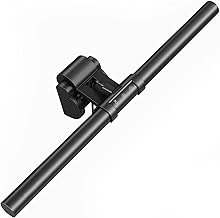
Colorpanda Eye-Care USB LED Monitor Light Bar with Touch Control for Curved/Flat Screens
The Colorpanda Eye-Care USB LED Monitor Light Bar offers an entry point into desk lighting at $27.99, compatible with both flat and curved monitor designs. A touch control panel sits on top of the unit, allowing manual adjustment of brightness and color temperature without a remote control.
This light bar reduces the need for a separate power adapter - it draws power directly through USB, simplifying cable management on crowded desks. The universal mounting clip fits a range of monitor thicknesses, and the flat profile works with screens that have thin bezels or curved panels where adhesive mounts might fail.
The tradeoff for this price is the absence of automatic dimming or wireless control. You'll adjust settings by reaching up to tap the touch panel, which works well if your lighting needs stay consistent throughout the day but becomes less convenient if you frequently shift between tasks that demand different brightness levels. There's no memory function, so the light bar resets to a default setting each time you power it on.
Light distribution is asymmetric - it directs most output downward toward the desk surface rather than back toward the screen, reducing glare during video calls or late-night work sessions. The color temperature range covers warm to neutral white tones, though the specific range isn't disclosed in verified specifications.
This model makes sense for remote workers or students setting up a first workspace upgrade, particularly those who want improved desk visibility without investing in premium features like ambient light sensors or app-based scheduling. If your monitor setup remains in one location and you're comfortable with manual control, the Colorpanda delivers functional lighting at a budget-conscious price point.
- ✅ USB-powered design eliminates separate adapter
- ✅ Compatible with both flat and curved monitors
- ✅ Touch control panel built into unit
- ✅ Asymmetric light reduces screen glare
- ✅ Budget-friendly at $27.99
- ⚠️ No remote control or automatic dimming
- ⚠️ Manual adjustment requires reaching to touch panel
- ⚠️ Settings reset each time unit powers off
- ⚠️ Specific color temperature range not disclosed
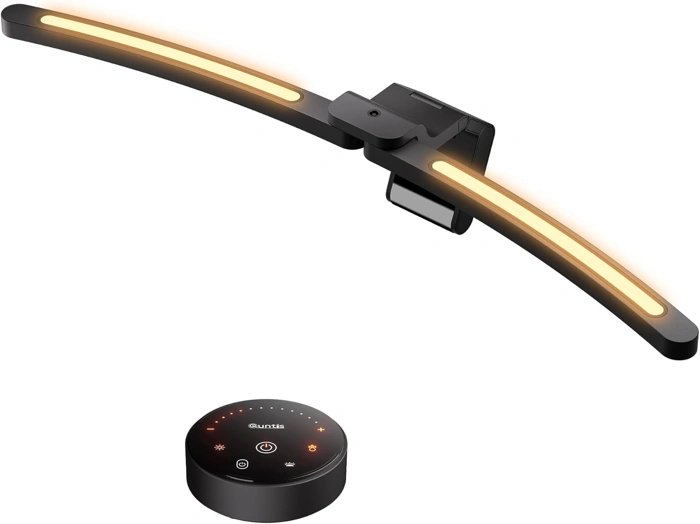
Quntis Dual Adjustable 1000R Curved Monitor Light Bar with Remote
The Quntis Dual Adjustable 1000R Curved Monitor Light Bar with Remote is purpose-built for curved ultrawide displays, addressing the unique mounting and coverage challenges that standard light bars can't always solve. Priced at $59.99, it sits in the mid-range and earns a 4.6/5 rating from users who value its specialized design.
The dual adjustable architecture is the defining feature here. Unlike fixed-arm models, this bar uses two pivot points that conform to the aggressive 1000R curvature found on many gaming and productivity monitors. This design keeps the light source stable across the curve and helps reduce the chance of the wobble or overhang that can occur when flat-mount bars are forced onto curved screens. If you've struggled with adhesive strips peeling or clamps slipping on a curved bezel, the Quntis approach offers a more secure fit.
The included wireless remote adds convenience for fast brightness and color temperature changes without reaching up to touch the bar itself. This is particularly useful in multi-monitor setups or when the curved screen sits farther back on the desk. You can cycle through lighting modes and dial in your preferred warmth without interrupting your workflow.
Light distribution is even across the curved desk surface, reducing the shadow gaps and hot spots that sometimes appear when a straight bar tries to illuminate a wraparound workspace. The bar is USB-powered, so no outlet is required - just plug into your monitor or PC. Color temperature is adjustable, letting you shift from cooler daylight tones for detailed work to warmer hues for evening use.
The tradeoff is specificity: this bar is optimized for 1000R curvature, so if your monitor has a gentler curve or is flat, you're paying for features you won't fully use. The remote, while handy, is one more item to keep track of on your desk. And at $59.99, it's more expensive than basic clamp-on models, though the price reflects the curved-monitor engineering.
Choose the Quntis if you own a 1000R curved monitor and want a light bar that mounts securely without adhesive, provides even coverage across the curve, and includes remote control for easy adjustments. It's the specialist pick for curved-screen setups where fit and stability matter more than rock-bottom price.
- ✅ Dual adjustable design conforms to 1000R curved monitors
- ✅ Wireless remote for convenient brightness and temperature control
- ✅ Even light distribution across curved desk surfaces
- ✅ Secure mounting without adhesive strips
- ✅ USB-powered, no separate outlet required
- ⚠️ Optimized for 1000R curvature, less suited to flat or gently curved screens
- ⚠️ Remote is an additional item to manage on the desk
- ⚠️ Higher price than basic clamp-on models at $59.99
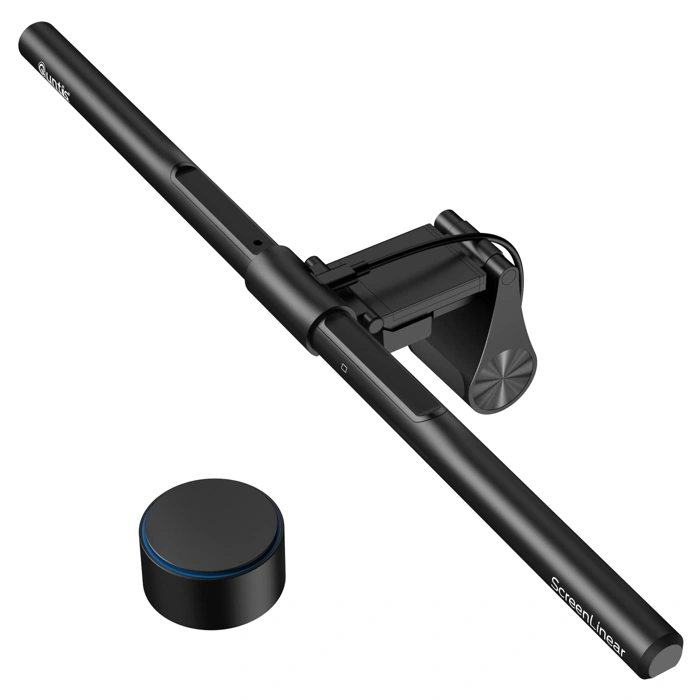
Quntis Monitor Light Bar PRO+ with Remote and Auto-Dimming
The Quntis Monitor Light Bar PRO+ sits at the premium end of the lineup at $69.99, and the difference is immediately obvious: this model includes both a wireless remote control and an auto-dimming sensor that adjusts brightness based on ambient light. If you're tired of manually tweaking your desk lighting as sunlight shifts during the day or room conditions change, the PRO+ removes that friction entirely.
The auto-dimming sensor continuously monitors your workspace and adjusts output to maintain consistent illumination. Paired with the wireless remote, you can fine-tune color temperature and brightness from your chair without reaching up to the light bar itself. This combination makes the PRO+ especially practical for users who work long hours in spaces with variable natural light - home offices near windows, studios with changing setups, or shared workspaces where lighting conditions aren't predictable.
At 4.6 out of 5 stars, the Quntis PRO+ earns its rating through consistent performance and thoughtful feature integration. The remote responds quickly, and the sensor strikes a good balance between responsive adjustment and stability - it doesn't chase every shadow, but it does adapt smoothly to meaningful changes in ambient light. The wireless remote means one less cable on your desk, and the sensor's placement is unobtrusive.
The tradeoff is cost. At nearly $multiple, this is the most expensive option in this guide, and the auto-dimming sensor and remote account for most of that premium. If you prefer manual control or work in a space with stable lighting, the automation may not justify the extra spend. But for users who value convenience and want lighting that adapts throughout the workday without input, the PRO+ delivers exactly that - hands-off adjustment that just works.
Best for users who want automated lighting adjustment and remote control convenience, and who work in spaces with variable ambient light throughout the day.
- ✅ Auto-dimming sensor adjusts to changing ambient light automatically
- ✅ Wireless remote control for hands-off adjustment
- ✅ 4.6/5 rating reflects consistent performance
- ✅ Well-suited for workspaces with variable natural light
- ⚠️ Most expensive option at $69.99
- ⚠️ Auto-dimming may be unnecessary for stable lighting environments
- ⚠️ Premium features may not justify cost for users who prefer manual control
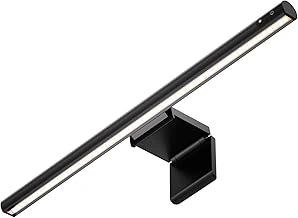
LYMAX Dimmable Monitor Light Bar with Adjustable Color Temperature and Touch Control
The LYMAX Dimmable Monitor Light Bar offers manual color temperature adjustment and touch control at $31.99, positioning itself as a mid-budget option for users who want hands-on customization without paying for wireless remotes or auto-dimming sensors.
Touch controls sit directly on the light bar, letting you adjust both brightness and color temperature without reaching for a separate remote. This design works well if your monitor sits within easy reach and you don't mind standing or leaning forward to make changes during work sessions.
The adjustable color temperature feature allows you to shift between warmer and cooler light tones depending on task and time of day. Warmer temperatures may feel more comfortable for evening work, while cooler settings can support focus during midday sessions. The absence of preset modes or wireless controls keeps the interface straightforward but requires physical interaction each time you want to adjust lighting.
At this price point, the LYMAX sits between bare-minimum models like the Colorpanda ($multiple) and remote-equipped options such as the Quntis with wireless control ($multiple). You gain color temperature flexibility without paying for remote convenience or automatic adjustment features found in higher-tier models.
The mounting mechanism uses a weighted clip design common to this category, fitting flat monitors without tools. Curved monitor compatibility depends on the specific curve radius and bezel design - some aggressive curves may not provide stable support for the counterweight system.
This light bar suits users who prefer manual control, keep monitors within arm's reach, and want color temperature options without stepping up to remote-controlled or sensor-equipped models. The 4.3/5 rating suggests generally positive user experience, though the touch-only interface may feel less convenient than remote operation during long work sessions when you're settled into an ergonomic position.
- ✅ Adjustable color temperature for task-appropriate lighting
- ✅ Touch controls eliminate need for batteries or remotes
- ✅ Mid-range price at $31.99
- ✅ Simple interface without learning curve
- ⚠️ Requires leaning forward to adjust settings
- ⚠️ No wireless remote for distance control
- ⚠️ Lacks auto-dimming or ambient light sensing
- ⚠️ Curved monitor compatibility may vary by bezel design
Key Features to Evaluate Before Buying a Monitor Light Bar
- Monitor compatibility: flat screen vs curved screen mounting stability
- Control method: touch controls on the bar vs wireless remote
- Brightness and color temperature range for different work times
- Auto-dimming sensor availability to adjust to ambient light changes
- USB power requirement and cable management
- Price point relative to feature set and build quality