Desktop USB ports tend to hide in the worst places - around the back of your monitor, behind a tangle of cables, or on the rear panel of your computer tower. Every time you need to plug in a phone, external drive, or webcam, you're reaching around furniture or crawling under your desk. A desk-mounted USB hub solves that by putting ports exactly where you need them: within arm's reach, off the desktop surface, and secured in place.
Three mounting styles dominate the market. Under-desk holders use adhesive backing or screw mounts to tuck the hub beneath your work surface, keeping cables and ports out of sight. Clamp-mount hubs attach to the edge of your desk with a C-clamp or similar bracket, offering tool-free installation and easy repositioning. Grommet-style inserts drop into cable-management holes, sitting flush with the desk surface for a built-in look. Each approach trades convenience against permanence: adhesive mounts stay invisible but require commitment, clamps move easily but occupy desk-edge real estate, and grommets demand a pre-drilled hole but deliver the cleanest aesthetic.
The five products in this guide cover all three mounting methods and span a range of port counts, power-delivery options, and price points. Some focus on basic USB-A connectivity for peripherals, while others add USB-C with power delivery to charge laptops alongside data transfer. Durability varies too - metal housings and reinforced cables hold up better under daily plug-and-unplug cycles than lightweight plastic shells. The right choice depends on how many devices you connect regularly, whether you need charging power or just data ports, and how much desk modification you're willing to accept.
Quick comparison
| CaSZLUTION Under Desk USB Extension Cable Holder | Check current price |
| Coolgear 3.2 Gen 1 USB Hub - 4 Port, 5Gbps, Mountable | See Coolgear 3.2 Gen 1 USB Hub - 4 Port, 5Gbps, |
| Jgstkcity 65W USB-C Hidden Desktop Power Grommet with 1 AC Outlet, 8 USB Ports | Check price and availability |
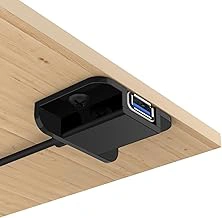
CaSZLUTION Under Desk USB Extension Cable Holder
When your primary need is bringing existing USB ports within arm's reach rather than expanding connectivity, the CaSZLUTION Under Desk USB Extension Cable Holder offers a straightforward solution at $9.99. This holder attaches to the underside of your desk using adhesive backing or screws, creating dedicated channels to route USB extension cables from your laptop or monitor to a more accessible position near the front edge of your workspace.
The product functions as a passive cable management fixture rather than a powered hub. You supply your own USB extension cables, which snap or slide into the holder's channels to keep them organized and prevent tangling. The adhesive mount works on smooth desk surfaces and allows for repositioning if needed, while the screw option provides more permanent anchoring for heavier desk materials or high-traffic workstations.
This approach suits users who already have sufficient USB ports on their computer or display but find them awkwardly positioned at the back or side of the desk. By securing the extension cables underneath and routing them forward, you eliminate the need to reach behind your monitor every time you plug in a flash drive or peripheral. The holder keeps multiple cables separated and stable, reducing desk clutter without introducing additional electronics.
Because this is a holder only, you avoid the cable bulk and power requirements of a traditional hub. The tradeoff is clear: no data switching, no additional ports beyond what your extensions provide, and no charging capability. If you need to add connectivity or fast-charge devices, a powered hub remains the better choice. But for users working with a laptop that already has four USB-C ports or a monitor with built-in hub features, this holder extends access without redundancy.
Installation takes minutes with the adhesive strips, though you'll want to plan your cable path before committing the mount. The holder accommodates standard USB-A and USB-C extension cables, and the open channel design allows you to add or remove cables without disassembly. At under ten dollars, it's the most budget-conscious option for improving cable access when expansion isn't the goal.
- ✅ Priced at $9.99, the most affordable desk-mount cable solution
- ✅ Adhesive or screw mounting for flexible installation
- ✅ Organizes extension cables without adding electronics or power draw
- ✅ Open channel design allows cable changes without disassembly
- ⚠️ Requires you to supply your own USB extension cables
- ⚠️ No powered hub features or additional connectivity
- ⚠️ Adhesive bond depends on desk surface cleanliness and material
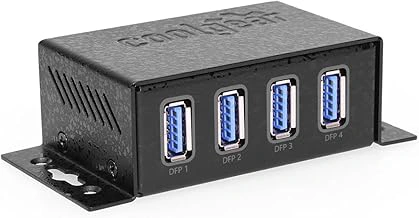
Coolgear 3.2 Gen 1 USB Hub - 4 Port, 5Gbps, Mountable
External drives, high-resolution webcams, and dongles that draw data quickly benefit from a hub that delivers consistent 5Gbps throughput. The Coolgear 3.2 Gen 1 USB Hub supplies four USB-A 3.2 Gen 1 ports and uses a screw-mount design that fastens to a desk edge, monitor arm, or cable tray for a fixed installation. At $54.95, it costs more than most desk-mountable hubs, but the trade is a focus on data rather than charging - there's no power delivery here, just reliable bandwidth for peripherals that need it.
The housing is built to stay put once mounted, with pre-drilled holes that accept screws or cable ties. This makes it a practical choice when you want the hub to live in one spot without shifting or dangling. Four ports give you enough room for a combination of thumb drives, card readers, or a wired keyboard without crowding, and the 5Gbps speed matches the USB 3.2 Gen 1 standard for file transfers that outpace older USB multiple ports by a wide margin.
Because this hub skips charging circuitry, it won't power a laptop or top up a phone - plug in a device that expects juice and nothing happens. That limitation narrows the audience to setups where data connection is the priority and charging lives elsewhere. If your desk already has a dedicated charger and you need fast, stable ports for external storage or dongles, the fixed-mount approach and consistent speed make sense. If you switch devices often or want one hub to handle both data and charging, the higher price and lack of power delivery will feel like a mismatch.
- ✅ Four USB-A 3.2 Gen 1 ports with 5Gbps data transfer speed
- ✅ Screw-mount design for permanent, stable installation
- ✅ Focused on reliable data connections for peripherals like external drives and webcams
- ⚠️ No charging capability - data only
- ⚠️ Higher $54.95 price compared to multi-function hubs
- ⚠️ Fixed mounting requires commitment to one location
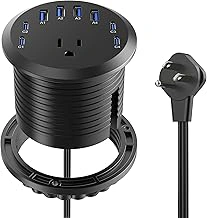
Jgstkcity 65W USB-C Hidden Desktop Power Grommet with 1 AC Outlet, 8 USB Ports
If you want your desk surface completely clear of charging hardware, the Jgstkcity 65W USB-C Hidden Desktop Power Grommet drops into a standard grommet hole and sits flush with the desktop. You get one USB-C port that delivers 65W fast charging, five USB-A multiple ports, two USB-A multiple ports, and one AC outlet - all accessible from the top ring without any visible clutter.
Installation requires a larger (multiple) grommet hole, either existing or drilled. The unit slides into the opening and locks in place with a tension ring underneath. Once installed, the hub stays put; removal is possible but intended to be infrequent. The 5-foot power cable routes through the desk and plugs into a standard wall outlet below.
The 65W USB-C port handles laptop charging for most ultrabooks and tablets. The five USB multiple ports support 5 Gbps data transfer for external drives, docks, and peripherals, while the two USB multiple ports work for keyboards, mice, and other low-bandwidth devices. The single AC outlet adds flexibility for desk lamps or phone chargers that need wall power.
At $33.99, this grommet hub costs more than adhesive or clamp options but less than premium articulating arms. The tradeoff is simple: you gain a seamless look and avoid desk-edge crowding, but you commit to a semi-permanent install and need the right desk setup. If your desk already has a grommet hole or you're willing to drill one, this hub delivers the cleanest cable access without sacrificing port count or charging speed.
- ✅ Sits flush with desk surface for invisible cable management
- ✅ 65W USB-C fast charging plus eight total USB ports and one AC outlet
- ✅ Fits standard 2.36-inch grommet holes
- ✅ Five USB 3.0 ports for fast data transfer
- ⚠️ Requires drilling a grommet hole if desk doesn't have one
- ⚠️ Semi-permanent installation makes repositioning difficult
- ⚠️ Single AC outlet limits multi-device wall-power needs
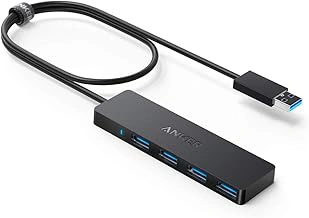
Anker 4-Port USB 3.0 Hub/Splitter for Laptop & PC
At $9.99, this compact Anker hub offers the most budget-friendly entry point in the lineup and works well for anyone who needs flexibility to relocate their connection points without committing to a fixed mounting solution. The 4.7-star rating reflects reliable performance across four USB 3.0 ports, and the lightweight design makes it easy to reposition or take with you when you move between workspaces.
Unlike hubs engineered with built-in clamps or grommet plates, this model ships as a simple plug-and-play splitter without dedicated mounting hardware. You'll need to supply your own adhesive strips, Velcro dots, or under-desk tape if you want to secure it to a surface. That approach trades installation permanence for portability - ideal if you rent, rearrange furniture frequently, or share a desk between home and office.
The hub's small footprint means it won't dominate your desk edge, and the four-port count handles typical peripherals like a keyboard dongle, webcam, external drive, and charging cable without forcing you to pick and choose. Transfer speeds meet the USB 3.0 standard, so file moves stay quick when you connect compatible devices.
This option makes the most sense when you value price and the freedom to experiment with placement before locking anything down. If you know you'll need a clamp or grommet system for cable routing behind a monitor arm or through a desktop cutout, the purpose-built alternatives earlier in this guide will save setup time and deliver a cleaner install from the start.
- ✅ Lowest price point at $9.99
- ✅ Lightweight and easy to reposition
- ✅ Four USB 3.0 ports for standard peripherals
- ✅ No commitment to permanent installation
- ⚠️ No built-in mounting hardware included
- ⚠️ Requires separate adhesive or Velcro for desk attachment
- ⚠️ Less cable management structure than dedicated mount hubs
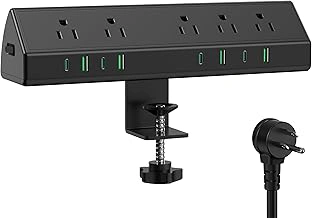
Jgstkcity Desk Clamp Power Strip with 45W Fast Charging, 4 USB-C, 4 USB-A Ports
The Jgstkcity Desk Clamp Power Strip offers the widest port selection in this roundup, with four USB-C and four USB-A ports plus 45W fast charging capability. The clamp mechanism attaches to desk edges up to the listed size thick without tools, making it easy to install or reposition as your workspace changes. Rated 4.5 out of 5 stars, this hub delivers both charging power and data connectivity in a single mount.
Fast charging at 45W makes this hub suitable for laptops, tablets, and phones that support USB Power Delivery. The eight USB ports eliminate the need for multiple dongles or adapters when you need to connect storage drives, webcams, keyboards, and other peripherals simultaneously. The larger footprint accommodates the extra ports and internal circuitry, so check your available desk edge space before ordering.
Tool-free installation means you can adjust the clamp position or move the hub to a different desk without leaving marks or holes. The clamp opens wide enough for standing desks, traditional office desks, and most workbench surfaces. At $39.99, this hub costs more than simpler adhesive models, but the combination of high port count, fast charging, and repositionable mounting delivers strong value for users who frequently swap devices or need charging power and data access at the same time.
The clamp design works best on desks with accessible edges. Corner workstations or desks flush against walls may limit placement options. The hub's larger size also means it takes up more vertical space below the desk edge compared to compact adhesive mounts.
- ✅ Eight total USB ports (four USB-C, four USB-A)
- ✅ 45W fast charging for laptops and tablets
- ✅ Tool-free clamp installation for easy repositioning
- ✅ 4.5-star rating
- ⚠️ Larger footprint requires more desk edge space
- ⚠️ Clamp design limits placement on corner or wall-flush desks
- ⚠️ $39.99 price point higher than adhesive models
Mounting Styles: Under-Desk, Clamp, or Grommet?
The mounting method you choose shapes how you interact with your hub every day and how your desk looks in the process. Under-desk adhesive or screw-mount holders sit out of sight beneath the work surface, routing cables up through the back or sides. They cost very little, install without modifying the desk structure, and keep the hub completely hidden. The tradeoff: you can't see the ports, so plugging in a thumb drive or charging cable means reaching under the desk or routing everything in advance. If you rarely swap devices and prioritize a completely clean desktop, under-desk placement works well.
Clamp mounts grip the edge of your desk with a screw-tightened vice, requiring no adhesive or drilling. You can adjust the position along the edge, reposition the hub when your layout changes, and remove the clamp entirely without leaving marks. The hub stays visible and within arm's reach, making frequent plug-and-unplug workflows faster. The visible clamp hardware and the hub itself add a functional look that may not suit minimalist setups, and the clamp requires a desk edge with clearance on both sides - standing desks with control panels or desks pushed flush against walls can block installation.
Grommet-style inserts drop through a round cable-management hole in your desk, sitting flush or slightly recessed into the surface. The hub stays accessible from above while cables drop cleanly through the hole, creating the tidiest appearance of the three methods. Grommet mounts require an existing hole, typically 2 to 3 inches in diameter, or the willingness to drill one. Once installed, the hub is effectively locked to that spot, making this a semi-permanent choice. If your desk already has a grommet opening and you want ports integrated into the surface itself, this style delivers the cleanest result. If you rent your workspace or move furniture often, the commitment may outweigh the aesthetic benefit.
Match the mounting style to your desk material, how often you swap devices, and whether you own or rent the space. Laminate and veneer desks support clamps and adhesive holders; solid wood handles all three if you're willing to drill. Renters and frequent movers benefit from tool-free clamps, while long-term setups in owned spaces can justify grommet installation for the cleanest finish.
What to Look for in a Desk Mount USB Hub
- Port count: Four ports minimum for typical peripherals; eight ports if charging phones, tablets, and accessories
- Power delivery: 45W or higher for fast-charging laptops and tablets; lower wattage is fine for keyboards and mice
- USB-C vs. USB-A: Check your device cables before buying; mix of both formats adds flexibility
- Data speed: USB 3.0 (5Gbps) or higher for external drives and video; USB 2.0 is adequate for charging cables
- Mounting method: Adhesive and screw mounts are secure but harder to remove; clamps allow repositioning without damage
- Cable length: Hubs with short host cables require the computer to be nearby; 3-foot or longer cables offer placement flexibility
Do You Need Charging, Data Transfer, or Both?
The hub you need depends on what you plug in most often. If you charge phones, tablets, or wireless earbuds at your desk, look for ports that deliver 18W or higher per USB-C connection. Standard USB-A charging typically tops out around 12W, so multi-device charging setups benefit from dedicated power delivery ports that can split wattage intelligently across devices.
Data transfer becomes the priority when you work with external SSDs, high-resolution webcams, or DSLR cameras tethered for file offload. USB 3.0 ports rated at 5Gbps handle 4K webcam streams and move large photo libraries without bottlenecking. USB 2.0 ports work fine for keyboards and mice but will slow down any drive transfers to roughly 35MB per second.
Some desk-mount hubs split their ports by function: two or three USB-C ports configured for charging, and separate USB-A ports designated for data peripherals. This design prevents a power-hungry tablet from interfering with the bandwidth available to your external storage. Other hubs offer uniform ports where every connection can handle both charging and data, which adds flexibility but may require you to check the spec sheet for per-port power limits.
Make a quick list of everything you connect during a typical workday. Count how many devices need charging simultaneously, then note which peripherals transfer files or stream video. Match those counts and speeds to the hub's port lineup, and you'll avoid buying extra capacity you won't use or running short on the ports that matter most.
Installation: What Works for Renters vs. Permanent Setups
Installation method matters more than most people think when choosing a desk mount USB hub, especially if you're renting or working from a temporary space. The right choice depends on whether you own your desk and how much effort you're willing to invest in setup and removal.
Clamp-style mounts attach to the desk edge with an adjustable screw mechanism and leave no permanent marks. They work well for renters because removal is instant and doesn't damage the surface. The tradeoff is limited placement options - you're constrained to the desk edge, and thicker desks or those with lips may not accommodate the clamp range. Stability also depends on how tightly the clamp grips, which can loosen over time if the hub gets bumped frequently.
Adhesive mounts offer more flexibility in positioning since they stick to any flat surface, including under the desk or along the side. They're fast to install and require no tools. The downside is removal risk: strong adhesive can pull finish or veneer off cheaper desks, and residue often requires solvent to clean. If you rent or plan to move, test the adhesive on an inconspicuous spot first or accept that you might forfeit the mount when you leave.
Grommet-mounted hubs sit flush with the desk surface and route cables through a drilled hole, usually 2 to 3 inches in diameter. This delivers the cleanest look and the most stable installation, but it's a one-way decision. Once you drill, the desk is modified permanently. Grommet installs make sense for owned desks where you control the setup and value a tidy, integrated appearance over portability. If you're in a rental or shared workspace, skip this option entirely.
Screw-mounted brackets fall somewhere in between. They create small holes that are less obvious than a grommet cut, and they're more secure than adhesive. Removal is straightforward, though you'll need wood filler or touch-up paint to hide the holes if that matters for your lease or resale value. This method works if you want a firm mount but aren't ready to commit to drilling a large opening.
Choose clamp or adhesive if you need flexibility and clean removal. Go with grommet or screw mounts if you own the desk and prioritize a permanent, stable setup.
Common Mistakes When Choosing a Desk Mount Hub
Picking the wrong desk mount hub usually starts with one of four mistakes, each with practical consequences that become obvious once the hub is installed.
Buying a hub filled with USB-A ports when most of your peripherals use USB-C means you'll need adapters or dongles, which defeats the purpose of a clean setup. Look at the cables you plug in regularly - phone chargers, external drives, keyboards - and count how many use USB-C versus USB-A. If the ratio skews heavily toward USB-C, choose a hub with at least two or three USB-C ports rather than settling for a model dominated by older connectors.
Choosing a data-only hub when you actually need device charging creates a second problem. Many USB hubs pass data but deliver minimal power, not enough to charge a tablet or keep a phone topped off during the workday. Check the power delivery rating for each port; hubs designed for charging will specify wattage per port, often 10W or higher for USB-A and 18W to 60W for USB-C with Power Delivery. If charging is part of your plan, confirm the hub includes this feature rather than assuming all USB ports supply adequate power.
Grommet-mounted hubs require a precise fit, and measuring desk thickness incorrectly is a common oversight. Most grommet designs work with desks between 0.75 and 2 inches thick, but thicker or thinner surfaces won't secure properly. Measure the exact thickness of your desk, including any cable management trays or desk pads that sit underneath, before committing to a grommet model. If your desk falls outside the standard range, look for clamp or adhesive mounts instead.
Mounting a hub too far from reach - under the desk or at the back edge - makes daily use frustrating. If you plug and unplug devices frequently, a hub positioned beyond arm's reach forces you to crouch or lean. Plan the hub location based on how often you'll access it. Front-facing clamp mounts work well for regular use, while under-desk or grommet mounts suit setups where cables stay connected most of the time.
Avoid these mistakes by listing your device types, checking power requirements, measuring your desk, and sketching where you'll actually reach for ports during a typical workday.
How to Organize Cables Once Your Hub Is Mounted
Mounting the hub is only half the solution - loose cables will still create clutter if you don't route them deliberately. Start by tracing the path each cable needs to take from the hub to its peripheral, choosing routes that run along desk edges or underneath the work surface rather than across open desktop space. Adhesive cable clips work well for guiding individual cables along the underside of your desk or down a table leg, keeping them out of sight but easy to reach when you need to swap devices.
For cables with excess length, use Velcro straps to coil and secure the slack close to the hub or near the point where the cable exits the desk. Unlike zip ties, Velcro straps allow quick adjustments when you add or remove devices. If you have several cables running together - such as a keyboard, mouse, and external drive all connecting to the same hub - bundle them inside a cable sleeve for the shared portion of the run. This makes the cluster easier to manage and reduces the visual noise of multiple wires running parallel.
Group your cables by use case: keep frequently swapped devices like USB drives or phone chargers routed through the most accessible ports, and secure permanent connections like your keyboard or webcam with clips so they stay in place. Run the hub's host cable (the one connecting to your computer) along the back edge of the desk and anchor it every eight to twelve inches to prevent sagging. Check that no cable is stretched tight or hanging unsupported, since tension can strain connectors over time.
Once everything is clipped and bundled, test each connection by gently tugging on the cables near the hub to confirm they're secure but not pinched. A well-organized setup keeps the desktop clear, makes port access straightforward, and prevents the tangle that tends to grow when cables are left to settle on their own.
Final Thoughts: Match the Hub to Your Desk and Daily Routine
Choosing the right desk mount USB hub comes down to three factors: how many ports you need, what kind of desk you have, and whether you're willing to drill or modify the surface.
Budget adhesive holders give you a place to clip an existing hub without adding ports. They work for renters or anyone who wants cable organization without permanent changes. Clamp-mount hubs attach to the edge of most desks and add multiple USB ports plus power delivery in one unit. They're stable, easy to reposition, and ideal if your desk has an accessible edge and enough clearance underneath. Grommet-mount hubs sit flush with the desk surface and hide all hardware below. They deliver the cleanest look but require drilling a hole, so they're best for dedicated workstations or desks you own. Compact portable hubs with short mounting brackets suit temporary setups or users who move between spaces frequently.
Desk thickness matters for clamps and grommets. Most clamp hubs handle desks between half an inch and two inches thick, while grommet kits specify exact hole diameters. Measure before you buy. Consider the materials, too: glass and metal desks limit clamp placement, and particleboard may not support grommet installations long-term.
Port count should reflect what you plug in daily. If you use a keyboard, mouse, webcam, and occasionally charge a phone, a four-port hub with one USB-C power delivery port will cover most days. If you run external drives, a microphone, a drawing tablet, and multiple charging cables, look for six or more ports and confirm the hub supports the data speeds your devices need.
Before ordering, list every device that will connect to the hub and note whether each requires USB-A, USB-C, data transfer, or charging. Measure your desk edge or grommet opening, and confirm the hub's cable length reaches your computer without strain. Match the mounting style to how permanent you want the setup to be, and choose a hub that fits the space you have rather than the maximum number of ports available.