We may earn a commission when you buy through links on this page, at no extra cost to you. How this works.
8-in-1 Ret retractable Charger Station with 105W USB-C GaN Hub
Compare port consolidation, power delivery, and desk footprint to find your ideal multi-device solution.
The average laptop user connects at least four peripherals every workday: a monitor, keyboard, mouse, and charger. Each device arrives with its own cable, creating a tangle of wires across the desk and forcing you to plug and unplug connectors multiple times a day. This daily ritual wastes time, stresses laptop ports, and turns a clean workspace into a frustrating mess.
Two solutions promise to simplify this chaos: USB-C hubs and dedicated docking stations. Both consolidate multiple connections into a single cable that attaches to your laptop, but they solve the problem in fundamentally different ways. A USB-C hub is a compact, portable adapter that typically offers three to eight ports and draws power through the laptop's USB-C connection. A docking station is a larger, stationary device with ten or more ports, its own power supply, and support for higher wattage delivery and multiple displays.
The right choice depends on how you work. Port count determines how many devices you can connect simultaneously without swapping cables. Power delivery capacity dictates whether the hub or dock can charge your laptop while running peripherals. Desk footprint affects whether the device blends into your setup or dominates it. Use case fit separates mobile professionals who need a lightweight hub for coffee shop work from office users who want a permanent desk solution that powers two monitors and never moves.
This guide compares USB-C hubs and docking stations across these four criteria, explains the practical tradeoffs that matter for cable management, and matches each device type to real work scenarios so you can choose the option that keeps your desk organized without sacrificing the ports or power you need.
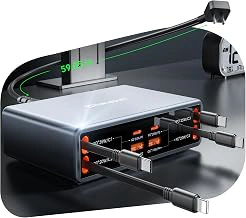
8-in-1 Ret retractable Charger Station with 105W USB-C GaN Hub
The 8-in-1 Retractable Charger Station with 105W USB-C GaN Hub addresses a common frustration for mobile professionals: too many loose cables tangled on the desk or stuffed into a bag. Its defining feature is a set of retractable cables built into the hub body, allowing you to extend only the connectors you need and reel them back when you're done. This design keeps your workspace tidier than a traditional hub surrounded by separate charging cables, and it collapses into a compact footprint that slips easily into a laptop bag.
The hub includes eight ports in total, covering USB-A data, USB-C power delivery, HDMI, and additional charging outputs. GaN technology enables the unit to deliver up to 105 W through USB-C while staying smaller and running cooler than older silicon-based chargers. For a single-laptop setup - especially if you move between a home office and a coworking space - this configuration works well: plug the hub into your laptop's USB-C port, connect your monitor via HDMI, attach a keyboard and mouse to the USB-A slots, and use the retractable cables to charge your phone and wireless earbuds without adding a tangle of extra cords.
Port variety is narrower than you'd find on a dedicated docking station. There is no Ethernet jack, no SD card reader, and no Thunderbolt certification for daisy-chaining high-speed displays or external storage arrays. If your workflow depends on wired networking, regular photo imports, or driving two 4K monitors at multiple Hz, a full dock will serve you better. The 8-in-1 hub also relies on your laptop's internal hardware to handle video output; older machines with less capable USB-C controllers may see reduced display resolution or refresh rate.
Where this hub excels is portability and simplicity. The retractable cables eliminate the need to pack separate charging bricks for your phone, tablet, or smartwatch, and the single USB-C connection to your laptop means you can set up or tear down your workspace in seconds. The 4.5/5 rating reflects solid build quality and reliable power delivery at the $49.98 price point. For remote workers who value a clean desk and light travel kit over maximum connectivity, the retractable design offers a practical cable-management advantage that fixed-port hubs and bulkier docks cannot match.
- ✅ Retractable cables reduce desk clutter and simplify packing
- ✅ 105 W GaN charging in a compact, cool-running design
- ✅ Eight ports cover basic laptop, monitor, and device-charging needs
- ✅ Single USB-C connection for quick setup and teardown
- ⚠️ No Ethernet, SD card slot, or Thunderbolt certification
- ⚠️ Narrower port selection than full docking stations
- ⚠️ Video output depends on laptop's USB-C controller capabilities
What Is a USB-C Hub? Pros, Cons, and When to Use One
A USB-C hub is a compact adapter that plugs directly into one of your laptop's USB-C ports and splits it into multiple connections - typically HDMI, USB-A, SD card readers, and sometimes an additional USB-C port for charging. These devices are designed for portability and simplicity, requiring no external power supply or driver installation in most cases.
The main advantage is convenience. USB-C hubs are small enough to toss in a laptop bag, cost considerably less than docking stations (often between $30 and $80), and work immediately when plugged in. For users who move between a home office, coffee shop, and coworking space, a hub provides just enough expansion without adding bulk.
However, these adapters come with real limitations. Most hubs deliver 60W to 85W of pass-through power, which may not be enough for high-performance laptops that need 100W or more. Port selection is limited - you might get one or two USB-A ports and a single HDMI output, but multi-monitor setups often require workarounds. Hubs can also run hot when multiple peripherals draw power simultaneously, and because they rely on a single USB-C connection, bandwidth is shared across all active ports. This can slow data transfers if you're running an external display, charging, and copying files at the same time.
USB-C hubs make the most sense when your workspace is minimal or temporary. If you connect a monitor, keyboard, and mouse only occasionally, or if you work from different locations regularly, a hub offers the flexibility you need without the desk space or cable infrastructure a docking station requires. For setups that stay put and demand more power, ports, or stability, a dedicated dock is the better choice.
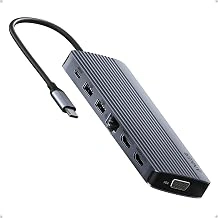
Anker 14-in-1 Laptop Docking Station for 3 Monitors with Dual 4K HDMI, 80W PD
Connecting three monitors, a keyboard, mouse, external drives, and Ethernet to a single laptop usually creates a tangle of cables. The Anker 14-in-1 Laptop Docking Station consolidates all those connections into one USB-C cable to your laptop, which also delivers 80W of power to keep most laptops charged during use.
This dock offers dual 4K HDMI ports alongside 14 total ports, so you can run a triple-monitor setup while plugging in USB peripherals, wired networking, and audio without hunting for free ports. Every device stays connected to the dock; when you need to move your laptop, you unplug one cable instead of unplugging six or seven.
The tradeoff is footprint and flexibility. A 14-port dock takes up more desk space than a compact hub, and the design assumes your desk layout will stay consistent. If you move between rooms or take your laptop to different workspaces regularly, the stationary nature of a dedicated dock becomes less practical. For a permanent desk with a multi-monitor setup and a long list of peripherals, the cable consolidation and port variety make sense.
80W power delivery covers most ultrabooks and mid-range laptops, though gaming laptops with higher power demands may still need their own charger. The dual 4K HDMI outputs simplify triple-display configurations compared to daisy-chaining or mixing adapters, and having all ports visible on the dock means less reaching behind your laptop to swap devices.
At $50.04, this dock fits budgets for users who need serious port expansion and want to eliminate cable clutter at a fixed workstation. If your setup involves three screens, wired peripherals, and a laptop that stays docked most of the day, a high-port-count docking station like this one reduces the daily friction of plugging and unplugging multiple cables.
Check current priceWhat Is a Docking Station? Pros, Cons, and When It's Worth It
A docking station is a stationary connectivity hub built to anchor a permanent desk setup. Unlike portable USB-C hubs, docking stations include their own power supply, higher port counts, and often built-in Ethernet or SD card readers that USB-C hubs either lack or offer in limited form. The design centers on a single-cable connection to your laptop - one USB-C or Thunderbolt cable carries power, video, and data - so you can connect or disconnect your entire workstation in seconds.
Docking stations manage heat better than hubs because they spread components across a larger enclosure and use active or passive cooling. This makes them suitable for running multiple 4K displays, charging power-hungry laptops at full speed, and driving external storage simultaneously without throttling. Most models include between eight and fifteen ports, covering USB-A, USB-C, DisplayPort or HDMI, audio jacks, Gigabit Ethernet, and sometimes legacy connectors like VGA.
The tradeoffs are cost, size, and mobility. Docking stations typically start around $150 and climb past $300 for Thunderbolt models with dual 4K support. They occupy more desk space than a compact hub, and the attached power brick means you won't toss one in a laptop bag. If you change desks frequently or work in coffee shops, a docking station stays behind - it's designed for a fixed location, not travel.
A docking station makes sense when your desk setup includes two or more external monitors, a wired network connection, and peripherals that draw steady power - external drives, webcams, or audio interfaces. It also simplifies cable management: instead of plugging four or five cables into your laptop every morning, you connect one. That single-cable convenience and the ability to support demanding peripheral loads make docking stations the practical choice for permanent, multi-display workstations.
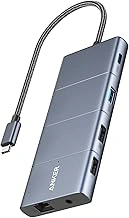
Anker 11-in-1 USB C Docking Station for Dual Monitors with 4K HDMI, 85W PD, Ethernet
The Anker 11-in-1 USB C Docking Station sits between portable hubs and enterprise docks, offering dual 4K HDMI outputs, 85W Power Delivery, and Gigabit Ethernet in a single upstream cable. For hybrid workers who need two monitors and wired networking without the footprint of a multiple-port station, this configuration handles video, data, and power in one connection while keeping desk clutter under control.
Both HDMI ports deliver 4K resolution, letting you run two external displays from a laptop with a single USB-C port. The 85W Power Delivery keeps most multiple- and larger laptops charged during use, though larger workstations with discrete graphics may need the original power brick alongside. Gigabit Ethernet provides stable bandwidth for video calls and file transfers when Wi-Fi congestion becomes a problem, and the wired port reduces the dropout risk that portable hubs often carry on crowded networks.
Eleven ports include the dual HDMI outputs, Ethernet, three USB multiple Type-A ports, two USB-C data ports, SD and microSD card readers, and a the listed size audio jack. This spread covers typical peripherals - keyboard, mouse, external drive, webcam, and card media - without requiring a separate USB hub or dongle chain. The dock draws power from an included AC adapter, so connected devices pull consistent current instead of competing for laptop battery budget.
Cable management improves because monitors, Ethernet, and peripherals plug into the dock rather than daisy-chaining from the laptop. One upstream USB-C cable connects the dock to your machine, leaving your workspace with a single point of attachment instead of four or five cables snaking across the desk. When you leave for the day, you disconnect one cable and take the laptop; when you return, you reconnect the same cable and every peripheral becomes available again.
This docking station works best when you need dual monitors and Ethernet but don't require triple-display output or specialized ports like DisplayPort or Thunderbolt downstream. If your workflow centers on two 4K screens, stable wired networking, and standard USB peripherals, the 11-in-1 provides the right port mix without the cost and size of a full IT dock. If you need three monitors or faster than Gigabit Ethernet, look at the multiple-in-1 CalDigit or similar stations with additional video and network options.
The compact footprint - roughly the size of a paperback book - fits narrow desks and minimalist setups where a larger dock would dominate the surface. The dock stays put, so cable routing becomes predictable: monitors and Ethernet run to fixed ports on the back, USB accessories connect to the front or side, and the upstream cable remains in the same position every session. This consistency reduces the tangle problem that portable hubs create when they shift position each time you plug in.
At $50.99, the Anker 11-in-1 offers dual 4K HDMI, 85W charging, and Ethernet at a price point between basic hubs and premium Thunderbolt docks. For hybrid work that alternates between office and home, the balance of ports, power, and price makes cable management practical without requiring a dedicated IT budget or permanent desk installation.
- ✅ Dual 4K HDMI outputs for two-monitor setups
- ✅ 85W Power Delivery charges most 13- and 15-inch laptops
- ✅ Gigabit Ethernet provides stable wired networking
- ✅ Eleven ports cover video, data, card readers, and audio
- ✅ Single upstream cable reduces desk clutter
- ✅ Compact footprint fits narrow desks
- ⚠️ 85W charging may not sustain larger 16-inch workstations under load
- ⚠️ No DisplayPort or Thunderbolt downstream connections
- ⚠️ Two-monitor limit - no third display support
Key Differences for Cable Management: Ports, Power, and Placement
Port density shapes how many cables you can consolidate. USB-C hubs typically offer 4 to 8 ports - enough for a monitor, keyboard, mouse, and maybe an external drive. Dedicated docking stations start at 8 ports and often reach 14 or more, accommodating dual displays, Ethernet, audio, multiple USB peripherals, and SD card readers without forcing you to choose which devices stay connected.
Power delivery determines whether you need a separate laptop charger. Most hubs pass through 60 to 100 watts via the host USB-C cable, which works for ultrabooks but may fall short under heavy load. Docking stations include an external power supply that delivers 85 to 100 watts reliably, keeping your laptop charged even when every port is active.
Desk placement affects visible cable clutter. Hubs sit inline between your laptop and peripherals, so each device cable still runs across your desk to the hub. Docking stations can be mounted behind a monitor, tucked under the desk, or placed in a cable-management tray, letting you route all peripheral cables out of sight and connect your laptop with a single USB-C or Thunderbolt cable.
Peripheral bandwidth matters when you run multiple high-speed devices. Hubs share one upstream USB-C link, so pairing a 4K display with a fast external SSD and gigabit Ethernet can saturate the connection and cause stuttering or slowdowns. Docking stations use dedicated controllers and separate buses, handling dual 4K monitors, USB 3.2 drives, and network traffic simultaneously without bottlenecks.
Hubs reduce cable count slightly by bundling a few connections into one dongle, but each peripheral cable remains visible on your desk. Docking stations centralize everything, turning a tangle of six or eight cables into a single connection point and making it practical to keep your workspace clear when you unplug your laptop at the end of the day.
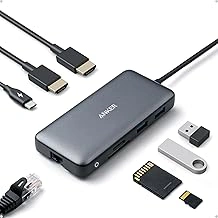
Anker 8-in-1 Laptop Docking Station for Dual 4K Monitors with 85W PD, SD Card Reader
The Anker 8-in-1 docking station brings dual 4K display support and eight ports to a surprisingly compact footprint. With 85W Power Delivery, two HDMI outputs, SD and microSD card readers, USB-A data ports, and a Gigabit Ethernet jack, this dock delivers single-cable convenience without demanding the desk space of larger models.
Dual 4K at multipleHz makes this a practical choice for photographers editing images side-by-side or content creators running timeline and preview windows. The 85W charging handles most multiple- and larger laptops; larger larger models with higher wattage requirements may need to stay plugged into their own chargers during sustained workloads. The SD and microSD slots sit on the front for quick access when transferring files from cameras or drones.
Cable management improves because the dock consolidates power, display, Ethernet, and USB connections into one upstream USB-C cable to your laptop. Peripherals plug into the dock instead of trailing across the desk, and the low-profile aluminum body stays put without sliding. Build quality feels solid, and the black finish matches most desk setups.
This dock occupies the middle ground between portable USB-C hubs and full-size workstation docks. It offers more power and more ports than a travel hub, but stops short of Thunderbolt speeds or higher refresh rates. For users with a stable desk, a couple of monitors, and a handful of peripherals - external drive, keyboard, mouse, and occasional card reader - this configuration strikes a useful balance between capability and size.
At around forty dollars, the Anker 8-in-1 undercuts many competing docks while delivering the ports most users actually connect. It simplifies morning plug-in to a single cable and keeps the desk tidier than running separate adapters for every peripheral.
- ✅ Dual 4K HDMI outputs for side-by-side monitor setup
- ✅ 85W Power Delivery charges most 13- and 14-inch laptops
- ✅ Front-facing SD and microSD card readers for quick file transfers
- ✅ Compact aluminum body saves desk space compared to larger docks
- ✅ Single upstream cable consolidates power, display, and data connections
- ⚠️ 30Hz refresh rate may feel less smooth for gaming or motion-heavy work
- ⚠️ 85W charging may not sustain larger 15-inch laptops under heavy load
- ⚠️ No Thunderbolt support limits data transfer speed to USB 3.0
How to Choose: Which Solution Fits Your Setup?
- Count your peripherals: fewer than 5 devices favor hubs; 6+ favor docking stations
- Check your laptop's power requirements: 60 W or less works with most hubs; 80 W+ demands a docking station
- Decide if you move your laptop daily: portable setups benefit from hubs; stationary desks benefit from docks
- Measure your desk footprint: hubs hide behind the laptop; docks require dedicated space behind monitors
- Account for monitors: single display works with hubs; dual or triple displays require docking stations
- Consider Ethernet: if you need wired networking, most hubs lack it - docking stations include Gigabit ports
Final Verdict: The Winner for Ultimate Cable Management
For permanent desk setups where cable management matters most, a dedicated docking station delivers the cleaner solution. A single USB-C cable runs from your laptop to the dock, while every peripheral - monitor, keyboard, mouse, external drive, ethernet, and power - stays plugged into the dock behind your desk or under your monitor. You walk up, connect one cable, and leave. No sprawl of adapters, no daisy-chained hubs, and no visible tangle across your workspace.
Hubs still hold value when portability or budget constraints take priority. A compact USB-C hub travels easily, adds three to five ports without occupying permanent desk real estate, and costs less than most docks. If you work from coffee shops, client offices, or shared spaces, a hub gives you flexibility without the weight or bulk of a docking station. For those scenarios, slight cable reduction beats the infrastructure of a dock.
The tradeoff comes down to peripheral load and desk permanence. If you connect two or more monitors, multiple USB devices, wired networking, and external storage daily, the dock's higher port density and power delivery justify the investment. If your setup changes frequently or you carry fewer than four peripherals, a hub keeps things simpler. Count your devices, measure how often you move, and choose the tool that matches your actual workflow rather than the one that sounds more capable on paper.