We may earn a commission when you buy through links on this page, at no extra cost to you. How this works.
When your Zoom call stutters mid-sentence or your screen share freezes during a client presentation, the problem usually isn't your internet speed - it's what else is happening on your home network at the same time. A single 4K Netflix stream can consume 25 Mbps of download bandwidth, while a PlayStation downloading a 50 GB game update will saturate your upload channel for hours. Add simultaneous cloud photo backups, YouTube videos, and smart home devices, and your work traffic gets pushed to the back of the line.
Most home routers treat all traffic equally, which means your video conference competes on the same terms as a teenager's TikTok binge. The result: choppy video, garbled audio, and VPN connections that time out when you need them most. Upload bandwidth is especially vulnerable because residential internet plans offer far less upstream capacity than download - often just 10 to 35 Mbps - so even a modest file upload from another device can cripple your ability to send clear video and audio.
The fix isn't always paying for a faster plan. Network segmentation and traffic prioritization let you carve out dedicated bandwidth for work devices, ensuring your laptop and desk phone get first access to the connection while family streaming and gaming wait their turn. This guide walks through three practical approaches: configuring Quality of Service rules on your existing router, creating a separate wireless network with its own access rules, or adding a second router to physically isolate work traffic from household devices.
Understanding the Problem: Bandwidth vs. Latency
Bandwidth and latency solve different problems, and confusing the two is why many remote workers still experience choppy calls even after upgrading their internet plan.
Bandwidth measures the total amount of data your connection can move per second, usually expressed in megabits per second (Mbps). Think of it as the width of a highway: a 100 Mbps connection can carry more simultaneous traffic than a 25 Mbps line. Streaming a 4K movie might consume 25 Mbps, a Zoom call uses 3 - 4 Mbps, and a large file download can saturate whatever capacity remains.
Latency, measured in milliseconds, is the time it takes for a single packet of data to travel from your device to a server and back. Video conferencing and VoIP rely on low, stable latency because every frame and audio sample must arrive in near real-time. A delay of 150 ms feels natural; 300 ms introduces noticeable lag and talk-over. Latency spikes - caused by congestion, router queues, or competing uploads - turn smooth calls into stuttering, frozen-frame experiences.
The core issue in a busy household is not usually total bandwidth but unpredictable latency caused by unmanaged traffic. When a family member starts a large game update or streams to multiple devices, the router's upload queue fills with packets. Your work call packets wait in line behind that backlog, arriving late or out of order. Doubling your plan speed from 100 Mbps to 200 Mbps gives you more capacity, but without traffic prioritization every device still competes equally, and latency can spike just as high during peak use.
Upload bandwidth deserves special attention because most residential plans are asymmetric: download speeds far exceed upload. A typical 100/10 Mbps cable connection offers only 10 Mbps upstream, and a single Zoom call in gallery view uses 3 - 4 Mbps upload. Add a cloud backup or a teenager live-streaming gameplay, and that 10 Mbps saturates quickly. Since video calls send data constantly, any congestion in the upload path shows up immediately as poor video quality or dropped audio.
Understanding this distinction makes the solution clear: you need to separate or prioritize work traffic so that latency-sensitive packets bypass the queue created by bulk downloads and streaming. Adding more bandwidth helps if you are genuinely speed-limited, but managing how that bandwidth is shared - through quality-of-service rules, a dedicated SSID, or a second router - addresses the latency problem that actually disrupts calls.
Step 1: Diagnose Your Current Network Speed and Stability
Before adjusting any settings, run a speed test during peak household usage - typically evenings when streaming, gaming, and video calls overlap. Use a tool like Speedtest by Ookla or Fast.com to measure download speed, upload speed, ping (latency), and jitter. Run the test multiple times over several days to capture consistent patterns rather than one-off spikes. Pay close attention to upload speed, which matters most for video calls and screen sharing, and to jitter, which indicates unstable packet delivery that causes freezing or dropouts. If your measured speeds consistently match your ISP plan during off-peak hours but drop significantly when the household is active, the issue is traffic contention rather than an inadequate internet plan. In that case, Quality of Service settings or a dedicated work network can solve the problem without upgrading your service tier.
Compare your results against your ISP's advertised speeds and your work requirements. Video conferencing typically needs 3 - 5 Mbps upload and latency under 100 ms, while large file uploads or cloud backups require sustained upload bandwidth. If your router is older than three to four years or struggles to maintain stable connections even during light usage, hardware capacity may be the limiting factor. Document your baseline numbers - they'll help you measure improvement after implementing QoS rules or adding a second router, and they clarify whether the root cause is ISP throttling, router performance, or simply too many devices competing for the same bandwidth pool.
Solution A: Prioritizing Traffic with Quality of Service (QoS)
Quality of Service settings allow your router to decide which data packets leave your home network first. When your work laptop is competing with three streaming tablets and a gaming console, QoS tags your video call traffic as high-priority and sends it ahead of the YouTube queue.
Most modern routers include QoS features in their admin panel. Log into your router by typing its IP address - usually 192.168.1.1 or 192.168.0.1 - into a web browser, then look for a QoS, traffic control, or bandwidth management section. You'll typically find options to prioritize by device (your laptop's MAC address), by application type (video conferencing, VoIP), or by port number.
Assign your work computer the highest priority tier. Many routers let you create rules that automatically recognize Zoom, Teams, or Slack traffic and bump it to the front of the line. Some systems use simple high-medium-low sliders; others offer percentage-based bandwidth allocation where you can reserve 60% of your upload speed for work devices during business hours.
QoS has a important limitation: it only governs outbound traffic leaving your home. Your router can't control the download stream coming from your internet provider, so if your teenager is pulling a 40 GB game update, QoS won't prevent that inbound flood from saturating your connection. It also requires compatible router firmware - older or budget models may lack the feature entirely, and some implementations are more effective than others.
For households where upload bandwidth is the this product - common during video calls when your camera feed is going out - QoS can make the difference between smooth collaboration and frozen screens. It won't solve every congestion problem, but it's the simplest fix that requires no new hardware.
Solution B: Creating a Separate Wi-Fi Network for Work
Most modern routers let you broadcast a separate Wi-Fi network name (SSID) alongside your main household network, giving your work traffic a logically distinct path without buying new hardware. This guest network feature - or the ability to create multiple SSIDs - appears on many dual-band routers, though the level of isolation varies by model and how you configure it.
To create a second SSID, log into your router's admin interface and look for options labeled guest network, multiple SSIDs, or virtual networks. Choose a distinct name for your work SSID and set a strong password. Connect only your work devices - laptop, work phone, and any peripherals that need network access - to this new network. Leave streaming boxes, gaming consoles, tablets, and personal phones on the primary family SSID.
Basic guest-network modes typically share the same internet pipe and radio channels, so while devices on each SSID cannot see one another's shared folders or printers, they still compete for bandwidth. For stronger isolation, check whether your router supports VLAN tagging on the secondary SSID. A VLAN assigns a unique virtual LAN ID to traffic on the work network, allowing you to apply separate QoS rules, bandwidth caps, or even route it through a different subnet. Not every consumer router exposes VLAN settings in the web interface; business-class models and some enthusiast firmware builds make this easier.
If your router lacks VLAN support, you can still improve performance by combining the separate SSID with QoS rules that prioritize traffic originating from your work device's MAC address or the work SSID itself. You might also place a bandwidth limit on the family SSID during your work hours - for example, capping it at 50 Mbps if your total plan is 200 Mbps - so that heavy streaming or downloads cannot starve your video calls.
This approach works well when you want device segregation and have a router that already supports multiple SSIDs. It avoids the cost and complexity of a second physical router, but you will need to layer on QoS or bandwidth caps to prevent the family network from consuming all available throughput during peak usage.
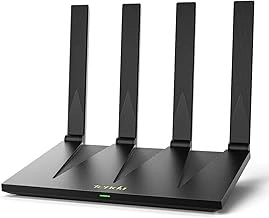
Tenda AX3000 WiFi 6 Dual-Band Gigabit Router RX12 Pro V3.0
The Tenda AX3000 WiFi 6 Dual-Band Gigabit Router RX12 Pro V3.0 delivers WiFi 6 performance and dual-band flexibility at a price that makes sense when you need a dedicated router for work traffic without overspending. Priced at $56.99, it provides gigabit Ethernet ports and the ability to create separate SSIDs, so you can route work devices to one network while family streaming and gaming stay on another.
WiFi 6 brings improved efficiency when multiple devices compete for bandwidth, and the dual-band design lets you assign priority traffic to the less congested 5 GHz band while keeping IoT devices and general browsing on multiple GHz. Gigabit ports support wired connections for video calls or file transfers where stability matters most. The RX12 Pro V3.0 also supports QoS configuration, giving you the tools to prioritize work applications over Tenda AX3000 WiFi 6 Dual-Band Gigabit Router RX12 Pro V3.0 downloads or 4K streams happening elsewhere in the house.
Setup is straightforward enough for small to mid-size homes, and the 4.7 rating reflects solid real-world reliability. If you're working from a room near the router and your household regularly maxes out a single network, this model provides an affordable path to traffic isolation. Keep in mind that range and throughput will suit typical apartment or single-story layouts better than large multi-story homes, where a mesh system might be necessary.
For remote workers who need predictable bandwidth without fighting over router settings every evening, the Tenda AX3000 offers a practical entry point into dedicated network management.
- ✅ WiFi 6 efficiency when multiple devices compete for bandwidth
- ✅ Dual-band design allows separate work and family SSIDs
- ✅ Gigabit Ethernet ports for stable wired connections
- ✅ QoS support to prioritize work traffic
- ✅ Budget-friendly at $56.99
- ⚠️ Range better suited to small to mid-size homes than large multi-story layouts
- ⚠️ May require mesh extension for whole-home coverage in larger spaces
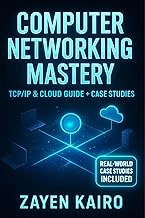
Computer Networking Mastery: The Complete Networking Playbook eBook
Setting up VLANs, troubleshooting subnet conflicts, or configuring advanced router features can feel overwhelming when you're learning by trial and error.Computer Networking Mastery: The Complete Networking Playbookoffers detailed Computer Networking Mastery: The Complete Networking Playbook eBook on network segmentation, VLAN tagging, and router configuration that goes beyond the quick-start guides bundled with consumer hardware.
This eBook is available free for Kindle Unlimited subscribers and covers concepts that apply directly to building a dedicated work-from-home network. You'll find explanations of how traffic prioritization works at the protocol level, why certain SSID isolation settings behave differently across router firmware, and how to interpret routing tables when troubleshooting connectivity issues between your work and family networks.
The book doesn't walk through specific router brand menus step-by-step, so you'll still need to cross-reference your own device's admin interface. Instead, it builds a foundation in networking principles that makes advanced setup tutorials and forum advice easier to follow. If you've hit a wall with QoS settings that don't seem to stick or need to understand why a second router in AP mode solves certain problems, this reference fills in the gaps.
At 4.2 stars, readers appreciate the breadth of topics but note that beginners may need to move slowly through the technical sections. For remote workers managing their own network without IT support, it's a low-risk way to deepen your understanding and troubleshoot issues that basic guides skip over.
- ✅ Free for Kindle Unlimited subscribers
- ✅ Covers network segmentation and VLAN concepts in detail
- ✅ Useful reference for troubleshooting advanced router configuration
- ⚠️ Does not provide router-specific step-by-step instructions
- ⚠️ Technical depth may be challenging for complete beginners
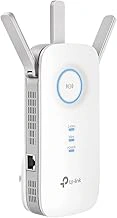
TP-Link AC1900 Dual-Band WiFi Range Extender RE550 w/Gigabit Port
When your home office sits too far from the main router to get stable 5GHz coverage, the TP-Link RE550 provides a practical way to extend a dedicated work SSID without rewiring your house. This dual-band extender supports AC1900 speeds and includes a gigabit Ethernet port, letting you hardwire a desktop, docking station, or VoIP phone for consistent work connectivity while your family streams on the main network.
The gigabit port matters because many range extenders still ship with multiple/multiple Ethernet, which bottlenecks wired devices even when the wireless backhaul is fast. With the RE550, you can place the extender midway between your router and office, connect your work computer via Ethernet, and reserve the extended 5GHz band for video calls or cloud uploads. The multipleGHz radio remains available for older devices or IoT gear that don't need priority.
Setup involves plugging the extender into an outlet, connecting to its temporary network, and running TP-Link's Tether app to clone or create a new SSID. If you're isolating work traffic, configure the extender to broadcast a separate network name rather than mirroring your main router's SSID. This keeps work devices on a distinct path and simplifies device management when you apply QoS rules upstream.
At $44.80 with a 4.3 rating, the RE550 complements an existing router rather than replacing it. Range extenders introduce some latency because they repeat traffic on the same channels, so wired connections through the gigabit port will outperform wireless for bandwidth-sensitive tasks. This trade-off works well when physical distance is the main issue and running Cat6 cable isn't feasible.
Positioning the extender correctly requires a power outlet roughly halfway between your router and office, within range of both. Too close to the router wastes its repeating capability; too far degrades the backhaul link. The Tether app includes a signal indicator to help find the sweet spot. Once placed, the RE550 handles typical office workloads - email, web conferencing, file sync - without competing for airtime with family streaming or gaming on the primary network.
- ✅ Gigabit Ethernet port supports full wired speeds for work devices
- ✅ Dual-band AC1900 design allows 5GHz isolation for work traffic
- ✅ Tether app simplifies placement and separate SSID configuration
- ✅ Affordable at $44.80 as a complement to existing router
- ⚠️ Range extenders add latency by repeating on the same channels
- ⚠️ Requires careful placement to balance backhaul and coverage
- ⚠️ Wireless performance depends on upstream router capabilities
How to Physically Set Up Your New Dedicated Network
Once you've chosen your approach - whether a second router, a VLAN-capable device, or dedicated QoS rules - the physical setup determines whether your network delivers the isolation you need. Start by connecting the new router or access point to your modem or primary router using an Ethernet cable, not Wi-Fi. Wired backhaul avoids the bandwidth penalty of wireless bridges and keeps your work traffic on a stable link.
Log into the device's admin panel by typing its default IP address into a browser; the address, username, and password are usually printed on a label on the bottom or back of the unit. Create a new SSID with a distinct name - something like "WorkNet" rather than reusing your household network name - and set a strong password. This separate SSID makes it easy to see which devices belong to your work environment and prevents accidental connections from family tablets or smart speakers.
Navigate to the QoS or traffic-shaping section of the admin interface and enable prioritization. Add your laptop, desk phone, and any other work devices by MAC address, assigning them the highest priority tier. MAC-based rules are more reliable than device-type detection because they lock priority to specific hardware, not guesswork about what an unknown device might be doing.
Run a speed test while someone streams video or downloads a large file on the family network. Compare upload and download numbers to your baseline measurements. If work traffic stays near your subscribed speeds while the household network is under load, your separation is working. If speeds drop significantly, double-check that QoS rules are active and that your work devices are on the correct SSID.
Write down the SSID, password, and admin login details in a password manager or encrypted note. Label the physical router if you have more than one, and keep a simple network map - even a photo of the back panel with cables labeled - so you can troubleshoot without guessing which port does what. A few minutes of documentation now saves hours of confusion later when something stops working and you need to adjust a setting or onboard a new device.
When to Use a Second ISP Connection
A second ISP connection is the most reliable way to guarantee uninterrupted work bandwidth, but it comes with recurring cost and setup complexity that only makes sense in specific situations. Before signing a second contract, most remote workers should exhaust QoS, VLAN segmentation, and bandwidth scheduling, which solve contention problems without doubling your monthly internet bill.
The strongest case for dual ISP service is employer reimbursement. If your company pays for a dedicated business line or offers a stipend that covers the extra connection, you eliminate the financial tradeoff and gain true physical separation between work and household traffic. Mission-critical roles - live customer support, real-time trading, telehealth consultations, or broadcast-quality video production - also justify the expense when a single dropout can cost more than months of service fees.
Frequent outages in your service area tip the balance as well. If your primary ISP suffers regular maintenance windows, weather-related drops, or peak-hour throttling, a second line from a different provider (cable plus fiber, or cable plus fixed wireless) provides automatic failover and removes the single point of failure. Configure a dual-WAN router to monitor both connections and switch traffic seamlessly when the primary link goes down.
Setup requires two modems, a router with dual-WAN ports or load-balancing firmware, and separate accounts with different ISPs to avoid shared infrastructure. Monthly cost typically ranges from the price of a single residential plan (if you keep your existing service and add a budget backup) to double that amount for two full-speed connections. Installation, static IP fees, and early termination clauses add to the total, so map the annual expense against the actual cost of downtime before committing.
For most households, a second ISP is overkill. QoS rules and a separate work SSID deliver priority and isolation without recurring fees, and a mobile hotspot provides emergency backup for the rare outage. Reserve dual ISP service for scenarios where uptime is contractually required, financially material, or subsidized by your employer.
Troubleshooting Common Setup Issues
Router admin panel inaccessible? First, confirm you're using the correct IP address - usually 192.168.1.1 or 192.168.0.1 - and disable any active VPN or proxy on your device, since both can block local network access.
If QoS settings aren't improving performance, double-check that the outbound bandwidth limit matches your actual upload speed from your ISP; setting it too high prevents the router from prioritizing traffic properly.
Devices refusing to connect to your new SSID often come down to band compatibility - older phones and IoT gadgets may only support 2.4GHz, so verify the network isn't broadcasting solely on 5GHz.
When an extender shows a weak backhaul signal, move it closer to the main router or switch to an Ethernet backhaul if possible; wireless hops amplify existing signal problems rather than fixing them.
If your work laptop still lags after configuration, run a direct speed test to rule out ISP throttling or line quality issues before spending more time tweaking router settings.
Reclaim Your Bandwidth and Boost Productivity
Stable work-from-home connectivity requires more than raw speed - it depends on how bandwidth is allocated when everyone is online at once. Households with moderate streaming and gaming can often solve bandwidth contention by enabling QoS on their existing router, tagging work devices or applications as high priority, and leaving entertainment traffic in the default queue. This approach works well when total bandwidth exceeds peak household demand and the router supports per-device or per-application rules.
For larger households or situations where family usage consistently saturates the link, physical or logical network separation offers stronger isolation. A second ISP connection or a VLAN-capable router can create a true work-only network, eliminating the risk that a surprise 4K stream or game update will spike latency during a client call. The tradeoff is cost and complexity: dual-WAN setups require compatible hardware and careful routing, while VLANs demand managed switches and some comfort with network configuration.
Whichever path you choose, initial setup is only the start. Test your solution under real-world load - schedule a video call while family members stream or game, then monitor latency and packet loss. Household usage patterns shift as school schedules change or new devices join the network, so revisit your QoS rules or bandwidth allocation every few months. A network that prioritizes work traffic today will keep video calls smooth and file uploads predictable, even when the rest of the house is pulling hard on the pipe.