We may earn a commission when you buy through links on this page, at no extra cost to you. How this works.
Video conferences expose every weakness in your home network. A frozen screen during a client pitch, garbled audio when you're presenting quarterly results, or the dreaded "your connection is unstable" banner can undermine your professional credibility in seconds. Traditional single-router setups struggle when you're competing with kids streaming cartoons, a partner downloading files, and smart home devices pulling bandwidth simultaneously - all while you need consistent upload speed for your camera feed and download capacity for a grid of participant windows.
Mesh routers solve the coverage problem by replacing one overworked access point with multiple coordinated nodes that blanket your home in overlapping signal. Instead of watching your connection degrade as you move from the home office to the kitchen for a coffee refill mid-call, mesh systems hand off your device seamlessly between nodes, maintaining stable throughput room to room. This matters for Zoom because video conferencing is bidirectional and latency-sensitive: you need both reliable upstream bandwidth for your outgoing video and audio, and consistent downstream capacity to render everyone else's feeds without stuttering.
Wi-Fi 6E takes this a step further by adding access to the 6 GHz band, a wide-open frequency range that older devices can't touch. When your laptop or tablet supports 6E, it gets a dedicated expressway free from interference caused by aging 2.4 GHz baby monitors, microwave ovens, and the dozen Wi-Fi 5 gadgets cluttering the 5 GHz spectrum. For remote workers, that means lower latency, reduced packet loss, and more predictable performance during back-to-back meetings. The combination of mesh architecture and 6E spectrum delivers the coverage and bandwidth consistency required to keep video calls smooth, whether you're in a 1,200-square-foot apartment or a multi-story house with a basement office.
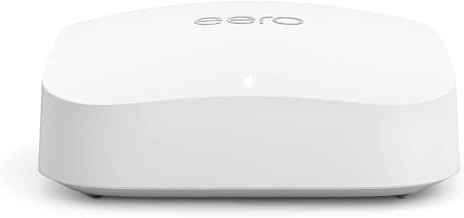
Amazon eero Pro 6E Mesh WiFi Router
The Amazon eero Pro 6E delivers stable, room-to-room coverage that keeps Zoom calls smooth without requiring network expertise. This single-unit mesh router uses the new 6 GHz band alongside multiple GHz and 5 GHz to reduce interference when you're running video, file uploads, and smart-home devices at the same time.
Setup happens through the eero app in about ten minutes. The system handles band selection automatically, moving your laptop or tablet to the clearest channel as you shift between rooms. TrueMesh technology routes traffic intelligently across units if you expand the network later, so a call in the guest bedroom gets the same priority as one in your main office.
Coverage from a single Pro 6E unit reaches most two- or three-bedroom homes. If you work from a detached garage studio or a basement office, adding a second node extends the network without creating separate SSID names or login steps. The router manages simultaneous device connections well - phones, tablets, and IoT gear stay connected while your work laptop holds bandwidth for video.
At $134.99, this sits above budget tri-band routers but below enterprise-grade systems. The price makes sense if you need consistent performance across multiple rooms and want setup to stay simple. If your office and all your Zoom calls happen in a single room, a less expensive dual-band router may cover your needs. The Pro 6E proves most useful when coverage gaps or device crowding have interrupted calls in the past.
Firmware updates arrive automatically in the Amazon eero Pro 6E Mesh WiFi Router, and the app lets you pause internet access by device or set up a guest network in seconds. The white enclosure blends into shelves or sits on a desk without standing out. You won't find advanced QoS controls or detailed traffic logs here - the focus stays on reliability and ease of use rather than granular configuration.
- ✅ TrueMesh technology routes traffic intelligently for consistent call quality room to room
- ✅ Automatic band steering moves devices to the clearest channel without manual switching
- ✅ App-guided setup completes in about ten minutes with no networking background needed
- ✅ 6 GHz band reduces interference when running video, uploads, and smart devices together
- ⚠️ $134.99 price sits above budget routers, less justified for single-room office setups
- ⚠️ Limited advanced controls - no detailed QoS tuning or granular traffic monitoring
What Wi-Fi 6E Does That Older Standards Can't
Wi-Fi 6E opens access to the 6 GHz band, a range that older Wi-Fi standards cannot touch. The 2.4 GHz and 5 GHz bands already carry traffic from millions of routers, baby monitors, Bluetooth speakers, and smart home gadgets. That congestion forces devices to wait their turn, which adds latency and increases the chance of dropped packets during a video call. The 6 GHz band starts clean - no legacy devices, no overlapping signals from neighbors, and wider channels that move more data in each transmission.
Lower interference translates directly into more predictable performance. When you share your screen or send a large file mid-meeting, your upload stream competes with less this product noise. Video frames arrive on time, audio stays synchronized, and the router spends fewer cycles managing collisions. Devices that support 6E can stay on the 6 GHz band while older phones and tablets use 5 GHz, which prevents a single outdated gadget from slowing the entire network.
Latency improvements matter most when multiple streams run at once. A router juggling three Zoom calls, a smart TV, and cloud backup can prioritize real-time traffic more effectively when it has extra spectrum to work with. The wider channels in 6 GHz - up to 160 MHz - mean a single high-priority connection does not have to share a narrow pipe with dozens of other packets. That headroom keeps jitter low and buffering rare, even when someone else in the house starts a 4K stream.
If your work depends on stable video and you live in a dense apartment building or share bandwidth with family, the 6 GHz band reduces the variables you cannot control. It will not fix a slow internet plan or a weak signal in a far corner, but it removes the interference ceiling that older standards hit the moment too many devices connect.
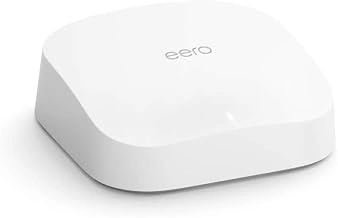
Amazon eero Pro 6 Tri-Band Mesh Wi-Fi 6 Router with Zigbee Hub
The Amazon eero Pro 6 delivers tri-band Wi-Fi 6 coverage for home offices in neighborhoods where the multiple GHz and 5 GHz bands still offer enough breathing room during video calls. At $94.98, it costs substantially less than the 6E routers but keeps two 5 GHz radios active to spread client devices across separate channels and reduce contention when multiple people join Zoom meetings or stream simultaneously.
Because this model lacks the 6 GHz band found in the TP-Link Deco XE75 Pro and NETGEAR Orbi RBKE963, your laptop and phone will share the same 5 GHz spectrum with every smart TV, tablet, and IoT device on the network. In a quiet RF environment - single-family homes with few visible neighbor networks - that tradeoff rarely affects call quality. In apartment buildings or dense subdivisions where channel overlap is common, the missing 6 GHz radio means you lose the cleanest escape route when interference spikes during peak evening hours.
The built-in Zigbee hub differentiates this router from most mesh systems by letting you connect compatible smart lights, locks, and sensors directly without an additional bridge. That matters if you already use Alexa routines to control office lighting or automate your standing-desk schedule, since every Zigbee device that joins the eero hub instead of crowding your Wi-Fi bands frees up airtime for video packets.
Setup runs through the eero app, which scans your space and suggests node placement based on signal strength between units. The system automatically steers devices to the faster 5 GHz band when signal and capability allow, but you cannot manually assign priority clients or reserve bandwidth the way some prosumer routers permit. For straightforward home-office use - one or two dedicated Zoom rooms, a handful of wired desktop connections via the dual gigabit Ethernet ports per node - that simplicity works in your favor by eliminating configuration mistakes that introduce latency.
The router applies security updates and feature patches in the Amazon eero Pro 6 Tri-Band Mesh Wi-Fi 6 Router with Zigbee Hub without rebooting during active calls, and eero Secure subscriptions add ad blocking, threat filtering, and activity insights if you want deeper visibility into bandwidth usage. The lack of a web interface means all changes happen through the mobile app, which may feel limiting if you prefer granular QoS rules or VLAN segmentation for separating work traffic from personal devices.
If your Wi-Fi analyzer shows moderate congestion on the 5 GHz band and you want smart-home integration without adding another hub, the eero Pro 6 balances cost and capability. When you need can help immunity from neighbor interference or plan to run multiple simultaneous 4K Zoom rooms, budget for the dedicated 6 GHz lane instead.
- ✅ Tri-band Wi-Fi 6 spreads devices across two 5 GHz radios to reduce channel contention
- ✅ Built-in Zigbee hub connects smart-home devices without crowding Wi-Fi bands
- ✅ Automatic background updates avoid call interruptions during firmware patches
- ✅ $94.98 price point offers mesh coverage at half the cost of 6E systems
- ⚠️ No 6 GHz band leaves you vulnerable to interference in congested apartment or suburban environments
- ⚠️ Mobile-app-only management limits advanced QoS and VLAN configuration
- ⚠️ Cannot manually assign bandwidth priority to specific Zoom devices or ports
Key Features to Prioritize for Video Conferencing
- Tri-band or dual-band support to separate video traffic from other devices
- Automatic band steering and device prioritization (QoS)
- Enough nodes to eliminate dead zones in your work-from-home space
- Gigabit Ethernet backhaul option for the most stable connection
- Easy app-based management for quick troubleshooting during calls
- MU-MIMO and OFDMA support for handling multiple devices simultaneously
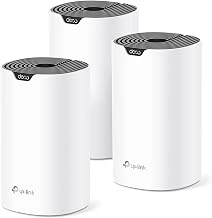
TP-Link Deco S4 Mesh AC1900 WiFi System
The TP-Link Deco S4 offers remote workers in apartments and smaller homes an affordable path to whole-home mesh coverage without the complexity or cost of Wi-Fi multipleE hardware. This AC1900 system uses the older Wi-Fi 5 standard, which delivers sufficient bandwidth for Zoom calls, browser tabs, and light streaming when you're not juggling a dozen simultaneous devices or competing with heavy neighborhood interference.
Each unit supports up to multiple connected devices across the mesh, and the three-pack configuration covers approximately 5,multiple square feet. Setup follows TP-Link's app-guided process: plug in the main node, scan the QR code, and add satellite nodes as the app directs. The system automatically selects the cleaner 5 GHz band for video calls when congestion appears on multiple GHz, and it includes basic parental controls and guest network options.
This router makes sense when your home office sits within 1,multiple square feet, you attend fewer than four video meetings daily, and you don't need to simultaneously upload large files while on camera. The AC1900 spec means maximum theoretical speed of 1,900 Mbps split across both bands - enough headroom for multiplep Zoom with several TP-Link Deco S4 Mesh AC1900 WiFi System devices, but noticeably slower than Wi-Fi multiple or multipleE when multiple household members work from home or stream in 4K.
Limitations show up in denser living situations. Apartments with overlapping networks on every channel will see more packet loss than a multiple GHz-capable system would allow, and the older wireless standard lacks the efficiency features that reduce latency under load. If your household regularly runs four or more active video streams, or if you're planning to stay in a larger home long-term, the investment in Wi-Fi multipleE pays off through better performance during peak hours.
At $95.98, the Deco S4 costs roughly half what entry-level Wi-Fi multipleE mesh systems command, making it a practical choice when stable Zoom connectivity matters more than future-proofing for bandwidth-hungry applications you don't yet own.
- ✅ Affordable three-pack mesh coverage for small homes and apartments
- ✅ Simple app-guided setup with automatic band steering
- ✅ Supports up to 100 devices and includes guest network controls
- ⚠️ Wi-Fi 5 standard offers less bandwidth and efficiency than Wi-Fi 6 or 6E
- ⚠️ Struggles with dense apartment interference on crowded 2.4 and 5 GHz bands
- ⚠️ Limited headroom for simultaneous 4K streaming and large file uploads
When Wi-Fi 6E Is Worth the Extra Cost
Wi-Fi 6E adds a dedicated 6 GHz band to the familiar 2.4 GHz and 5 GHz channels, which can make a real difference if interference is slowing your Zoom calls today. In dense apartment buildings where dozens of overlapping networks compete for the same airspace, the cleaner 6 GHz spectrum reduces jitter and packet loss during video uploads. Households running simultaneous video meetings, cloud backups, and 4K streaming also benefit from the extra bandwidth and lower latency that comes with fewer devices crowding each channel.
The upgrade matters most when you regularly upload large files - presentation decks, video recordings, design assets - while staying on a call. Wi-Fi 6E routers can dedicate the 6 GHz band to those high-priority tasks, leaving older bands free for phones and smart-home devices. If your work involves screen sharing high-resolution content or hosting webinars with multiple participants, the reduced congestion keeps your upstream stable.
Wi-Fi 6E is less critical in single-family homes with few nearby networks and a modest device count. A solid Wi-Fi 6 mesh system will handle two or three concurrent Zoom calls without trouble in that environment, and you will save money. Older Wi-Fi 5 routers remain adequate for lighter use - occasional video chats in a small apartment with minimal interference - though you sacrifice headroom as your device list grows. Evaluate your current congestion, the number of devices connecting at once, and whether you share walls with neighbors before paying the premium for 6E hardware.
Choosing the Right Router for Your Home Office
Matching the right Wi-Fi 6E mesh router to your home office setup comes down to three variables: coverage area, device count, and network congestion from neighboring signals.
Start by measuring your work space. A single-floor apartment or small home under 2,000 square feet can typically rely on a two-node system. Multi-story homes or spaces approaching 4,000 square feet benefit from three-node configurations that prevent dead zones during video calls. Walk through your office area with your phone and note where your current signal drops - those corners and rooms will need coverage priority.
Next, count every device that will share the network during peak usage. Include laptops, tablets, phones, smart displays, and any IoT devices that run simultaneously with Zoom. If you regularly host calls while other household members stream video or game, prioritize routers with wider channel bandwidth and dedicated backhaul bands to separate traffic.
Finally, assess interference. Open your phone's Wi-Fi settings and check how many neighboring networks appear. High-density apartment buildings or office parks create spectrum crowding that degrades performance on traditional 2.4 GHz and 5 GHz bands. The 6 GHz band in Wi-Fi 6E provides relief here, but only if your primary work devices support it - verify your laptop and conferencing hardware before committing.
Once you've mapped those three factors, the choice becomes straightforward. Smaller spaces with moderate device loads can use entry-level dual-node systems. Larger homes with heavy simultaneous usage demand tri-band or quad-band architectures with wired backhaul options. Environments with extreme interference justify the investment in 6E specifically for its cleaner spectrum, while less congested areas may find sufficient performance from well-positioned Wi-Fi 6 alternatives.
Check your current router's admin interface to identify which bands your devices actually use, then compare that against the specifications of any system you're considering. This prevents overspending on features your hardware can't utilize and ensures your Zoom traffic gets the bandwidth it needs without competing for crowded channels.