We may earn a commission when you buy through links on this page, at no extra cost to you. How this works.
Wrist pronation is the inward rotation of your forearms that happens when you place both hands on a flat, single-piece keyboard. This rotation forces your wrists to bend outward, creating strain across the tendons and nerves that run through the carpal tunnel. Over hours of daily typing, that strain accumulates.
Split ergonomic mechanical keyboards physically separate the key clusters into left and right halves. This separation allows your forearms to rest in a parallel or slightly angled position, reducing the degree of pronation and keeping your wrists closer to a neutral, handshake-like alignment. The result is less twisting through the forearm and wrist joint during every keystroke.
When evaluating split keyboards for pronation relief, four attributes matter most. Split width determines how far apart you can place the halves to match your shoulder width. Tenting capability - the ability to raise the inner or outer edge of each half - adds a vertical angle that further aligns the forearm. Mechanical switch type affects typing force and feedback, which influences how much you hammer the keys. Adjustment range covers whether you can fine-tune angles, height, and spacing as your posture or desk setup changes.
The four keyboards reviewed below represent distinct tradeoffs. One prioritizes wireless freedom and portability. Another offers deep firmware customization for programmers. A third delivers pre-built simplicity with broad tenting. The fourth targets budget-conscious buyers who want mechanical splits without advanced features. Each addresses pronation, but the best choice depends on how much adjustability you need, whether you value wireless operation, and how comfortable you are assembling or programming a keyboard.
How to Transition to a Split Layout Without Losing Typing Speed
Switching to a split layout will slow your typing speed initially, but the adjustment is temporary and predictable. Most people see their speed return to baseline within one to two weeks of consistent practice, while some regain full speed in just a few days.
Start with short sessions of 15 minutes, then return to your standard keyboard for the rest of your work. This approach prevents frustration and lets your fingers learn the new finger-to-key assignments without deadline pressure. Over three to five days, extend your split keyboard time by five to ten minutes as the layout begins to feel more automatic.
Typing trainers help rebuild muscle memory faster than regular work tasks. Tools like Keybr or TypingClub isolate problem keys and drill the movement patterns your fingers need for the wider hand separation. Even ten minutes of focused training each morning accelerates adaptation more than hours of frustrated email writing.
Adjust the split width gradually if your keyboard allows it. Begin with the halves closer together - just wide enough to straighten your wrists - then widen the gap by half an inch every few days as your shoulders relax into the new posture. Jumping straight to maximum separation often triggers shoulder fatigue and finger confusion that slows progress.
Expect accuracy to drop before speed does. Your fingers will reach for keys in their old positions, especially punctuation and modifier keys near the center. When you notice recurring mistakes on specific keys, slow down and practice short phrases that use those characters until the correct motion becomes automatic.
Consistency matters more than session length during the first week. Thirty minutes every day builds reliable motor patterns faster than sporadic two-hour marathons. If you must meet deadlines, keep your old keyboard nearby for high-pressure tasks, then return to the split layout for lower-stakes typing.
Once your speed recovers, the neutral wrist position becomes the new default, and returning to a traditional layout often feels cramped. The transition discomfort is short-lived, but the ergonomic benefit persists as long as you use the split design.
Limitations of Split Keyboards for Wrist Pronation
Split keyboards reduce wrist pronation by letting you position each half at shoulder width, but they don't eliminate it unless you also add significant tenting or switch to a contoured, vertical layout. A flat split keyboard still requires your palms to face downward, which keeps your forearms rotated inward to some degree. Most split boards improve wrist alignment compared to a traditional keyboard, yet the gain is incremental rather than transformative on its own.
If you have ongoing wrist discomfort or a history of repetitive strain, a basic split may not provide enough correction. Models with adjustable tenting legs help lift the inner edge of each half so your thumbs rise higher than your pinkies, reducing pronation further. Even with maximum tenting - often between ten and fifteen degrees - your wrists remain partially rotated. Users with more severe symptoms sometimes need fully sculpted key wells or true vertical keyboards where the keys face each other rather than upward.
Desk height and chair armrest position play as large a role as keyboard geometry. If your desk sits too high, your wrists hinge upward; if your elbows drop below desk level, you compensate by rotating your forearms more. A split keyboard can't override poor posture or an ill-fitted workstation. Pairing the keyboard with an adjustable chair, a desk at elbow height, and neutral arm position delivers better results than the keyboard alone.
Improvement unfolds over days or weeks as your muscles adapt to the wider hand placement and any tenting angle you choose. Expecting instant relief sets you up for disappointment. Treat a split ergonomic mechanical keyboard as one part of a broader setup that includes breaks, stretching, and attention to how you hold tension in your shoulders and neck.
Making the Switch: Next Steps After Choosing Your Split Keyboard
A split ergonomic mechanical keyboard changes how your wrists rest during typing, but the keyboard itself is only one part of a supportive workspace. Before you start typing regularly on your new split layout, check desk height and chair armrest position to keep your wrists level with the keyboard surface. If your elbows hang below the keyboard or your wrists angle upward to reach the home row, pronation stress simply shifts rather than disappears.
Monitor placement matters as much as keyboard geometry. Position your screen at eye level so your neck stays neutral and your shoulders stay relaxed. When you lean forward or tilt your head down to see the display, your arms push forward and rotate inward, reintroducing the wrist angles you bought a split keyboard to avoid.
If you are uncertain whether a fixed or adjustable split will suit your habits, start with a single-piece split model that offers moderate splay and limited tenting. These designs cost less and let you learn the layout without the complexity of angle tuning or firmware customization. Once you know how much separation and tilt you prefer, a fully adjustable or wireless split becomes a more confident investment.
Keyboard upgrades do not compensate for poorly adjusted chairs, monitors placed too low, or desks set at the wrong height. Integrated workspace adjustments - correcting all contact points and sight lines together - yield better wrist alignment and comfort than any keyboard can deliver on its own.
Key Features to Compare When Choosing a Split Ergonomic Keyboard
- Split width and separation distance between key clusters
- Tenting capability and adjustable angle range for neutral wrist rotation
- Mechanical switch type and actuation force for tactile feedback
- Wired versus wireless connectivity and battery life if applicable
- Fixed versus adjustable split geometry and portability
- Palm rest design: integrated cushioning versus separate accessory pads
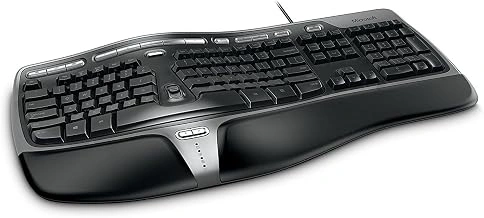
Microsoft Natural Ergonomic Keyboard 4000
The Microsoft Natural Ergonomic Keyboard multipletroduces a fixed split layout that positions your hands at a gentler angle than traditional flat keyboards. The center hump divides the alpha keys into left and right clusters, reducing the inward rotation many typists experience when their wrists twist to meet a straight board.
Microsoft built a cushioned palm rest directly into the frame, offering a place to rest your wrists during pauses without adding a separate accessory. The integrated design keeps desk clutter minimal, though the fixed attachment means you cannot adjust height or firmness.
This keyboard uses membrane switches rather than mechanical key mechanisms. Each press feels softer and quieter than a mechanical option, which works well in shared spaces but delivers less tactile feedback. If you prefer the distinct click or bump of a mechanical switch, the membrane feel will seem less responsive.
The split angle is locked in place - you cannot tent the halves upward or rotate them independently. That fixed geometry suits users who want a mild split without the complexity of adjustable stands or modular frames. If your wrists require more aggressive angling or if you want to experiment with tent positions, this model offers no room to adapt.
The keyboard connects via USB cable and relies on plug-and-play drivers, so setup takes seconds on Windows machines. Compatibility with macOS exists but key legends and function assignments follow Windows conventions, making certain shortcuts less intuitive on a Mac.
At this price point, the Natural Ergonomic Keyboard 4000 occupies an entry tier for anyone curious about split layouts but not ready to invest in a fully adjustable mechanical board. The membrane switches and fixed geometry limit customization, yet the cushioned rest and straightforward layout remove the learning curve that comes with more modular designs.
- ✅ Fixed split layout reduces inward wrist rotation
- ✅ Integrated cushioned palm rest included
- ✅ Quiet membrane switches for shared spaces
- ✅ Simple USB plug-and-play setup
- ⚠️ No mechanical switches for tactile feedback
- ⚠️ Fixed split angle with no tenting adjustment
- ⚠️ Palm rest height and firmness cannot be changed
- ⚠️ Windows-centric key legends and functions
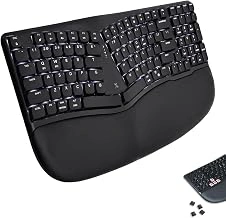
X9 Performance Low Profile Mechanical Ergonomic Keyboard
The X9 Performance Low Profile Mechanical Ergonomic Keyboard offers a compact mechanical typing experience at $59.99, positioned as an entry point for users exploring split layouts without the typical height of standard mechanical switches. The low-profile design reduces overall key travel distance compared to full-height mechanical keyboards, which can feel faster for typists accustomed to laptop-style keys but may lack the tactile feedback depth some mechanical keyboard users prefer.
This keyboard uses a split layout to reduce wrist pronation by allowing you to position each half at shoulder width, keeping your forearms in a more neutral alignment during extended typing sessions. The mechanical switches provide consistent actuation and durability over membrane alternatives, though the low-profile construction means less vertical key travel than traditional Cherry MX-style switches. If you value a flatter typing angle and portability, the reduced height works well on standard desks without adding wrist extension.
At this price point, the X9 Performance trades premium adjustability features - such as variable tenting angles or modular wrist rests - for straightforward split geometry and mechanical reliability. The keyboard maintains a fixed angle, so users who need significant tenting to accommodate existing wrist discomfort may find the flat profile insufficient. Build materials prioritize function over metal housings or braided cables, keeping the cost accessible while delivering the core ergonomic benefit of lateral separation.
The split width is moderate, suitable for most desk setups without requiring a large footprint, and the low profile keeps the keyboard stable during typing without additional feet or stands. For budget-conscious buyers willing to accept limited adjustability in exchange for mechanical switches and a proven split layout, the X9 Performance delivers practical wrist alignment improvement at a fraction of the cost of premium ergonomic models.
- ✅ Low-profile mechanical switches for faster key travel and laptop-like feel
- ✅ Split layout reduces wrist pronation at shoulder-width separation
- ✅ Budget-friendly at $59.99 compared to adjustable ergonomic keyboards
- ✅ Compact footprint fits standard desks without excessive space requirements
- ⚠️ Fixed flat angle with no tenting adjustment for wrist elevation
- ⚠️ Reduced key travel depth may lack tactile feedback for traditional mechanical keyboard users
- ⚠️ Basic build materials without premium metal housings or modular accessories
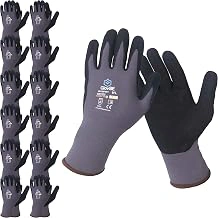
Nylon Nitrile Micro Foam Work Gloves, Smart Touch, Grey (Small)
Transitioning to a split ergonomic keyboard often reveals how much wrist and palm stability matter during long typing sessions, particularly in cooler workspaces or when hand positioning feels unfamiliar. These nylon nitrile micro foam work gloves offer a complementary grip solution for users who want touchscreen-compatible hand coverage while adapting to new keyboard layouts or maintaining wrist alignment in cold environments.
The nitrile micro foam coating provides textured grip across the palm and fingers without adding bulk that would interfere with key travel or switch actuation on mechanical boards. The nylon shell remains Nylon Nitrile Micro Foam Work Gloves, Smart Touch, Grey (Small) enough for extended wear, and the smart-touch compatibility means you can swipe a trackpad or phone screen without removing the gloves. Sizing runs small, so the listed small size fits snugly on most hands that measure the listed size in circumference at the knuckles.
This product works best as transitional support during the first weeks with a split keyboard, when users are still building muscle memory for the new hand separation and tenting angles. The added friction can help stabilize wrists that tend to slide outward or collapse into pronation during fast typing. These gloves are not a substitute for proper keyboard adjustment or wrist positioning, but they can reduce fatigue when learning a new layout or working in environments below multiple°F where bare hands lose dexterity.
At $43.99, the price reflects a bulk or specialty pack rather than a single pair, though the product details do not clarify pack quantity. The 4.5/5 rating suggests reliable construction and fit for the intended use case. If you're acclimating to a split mechanical keyboard and need temporary grip assistance or cold-weather hand coverage that preserves typing feel, these gloves offer a practical accessory option without compromising switch feedback or touchscreen functionality.
- ✅ Nitrile micro foam coating adds palm and finger grip without bulk
- ✅ Smart-touch compatible for trackpad and phone use
- ✅ Breathable nylon shell suitable for extended wear
- ✅ Helps stabilize wrist positioning during split keyboard adaptation
- ⚠️ Sizing runs small; measure hand circumference before ordering
- ⚠️ Price suggests bulk pack, but quantity not confirmed in product details
- ⚠️ Not a replacement for proper keyboard adjustment or ergonomic positioning
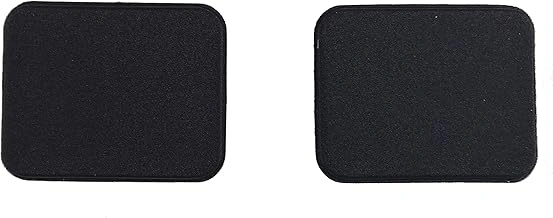
KINESIS Advantage Palm Pads, Set of 2
Users who already own a split ergonomic keyboard but want additional palm cushioning can add the KINESIS Advantage Palm Pads without replacing their entire setup. These pads attach directly to the palm rests of the Advantage keyboard series, offering a soft surface that reduces pressure on the heels of the hands during extended typing sessions.
The pads use a cushioned material that compresses slightly under weight, spreading contact area across the palm rather than concentrating pressure on a narrow ridge. They attach with adhesive backing, so installation takes seconds and does not require tools or modifications to the keyboard frame. Once in place, the pads stay secure through normal daily use.
Compatibility is specific to the Advantage line - these pads are sized and shaped for the contoured wells and integrated palm rests that define that keyboard family. If you own an Advantage model and find the original plastic palm rests too firm after long sessions, these pads offer a straightforward upgrade. They will not fit keyboards with detached or adjustable palm rests, and they do not add tenting or change hand position; they only provide cushioning where your palms already rest.
At $27.18 for a set of two, the pads represent a low-cost way to improve comfort on an existing keyboard rather than investing in a new model. The adhesive bond is strong enough for daily use but may lose grip over time if frequently removed and repositioned. Users who prefer firmer support or who need ergonomic changes beyond cushioning should consider keyboards with adjustable tenting or negative tilt instead.
These pads are a practical retrofit for Advantage owners who type for hours at a stretch and notice discomfort or redness on the heels of their palms. They do not solve wrist pronation or ulnar deviation on their own, but they reduce one common friction point in an otherwise well-designed split layout.
- ✅ Adhesive backing installs in seconds without tools
- ✅ Cushioned material reduces palm pressure during long sessions
- ✅ Low-cost upgrade for existing Advantage keyboards
- ✅ Stays secure through normal daily typing
- ⚠️ Compatible only with Advantage series keyboards
- ⚠️ Does not adjust tenting, tilt, or hand position
- ⚠️ Adhesive may weaken if frequently removed
- ⚠️ No benefit for users who need firmer palm support