We may earn a commission when you buy through links on this page, at no extra cost to you. How this works.
Kinesis Gaming Freestyle Edge RGB Split Mechanical Keyboard, Cherry MX Linear Red, Ergonomic, TKL
Four ergonomic keyboards with integrated palm rests that reduce strain during extended typing.
A keyboard with a built-in padded palm rest keeps your wrists aligned during hours of continuous typing without adding extra accessories to your desk. The integration ensures the rest sits at the correct height relative to the key deck, which separate wrist pads often fail to match once you adjust your chair or monitor. Cushion density affects whether your wrists sink too far or feel uncomfortably firm after the first hour, so materials like memory foam, gel, or firm polyurethane each offer different support profiles.
Split and wave layouts change how your hands naturally rest compared to traditional flat keyboards. A split design angles each half outward to reduce ulnar deviation, while wave or contoured key shapes guide your fingers without forcing your wrists into extension. Mechanical switches provide tactile feedback and durability but add height, which makes the palm rest thickness even more important. Membrane switches sit lower and quieter, often paired with thinner rests that work well for lighter typists.
We focus on keyboards where the palm rest is permanently attached or shipped as a factory-matched component, not third-party add-ons. Gaming keyboards with RGB emphasis but shallow rests, compact layouts smaller than tenkeyless, and models that require you to buy the wrist pad separately are excluded. The goal is stable wrist positioning across long sessions, not just a soft surface that shifts or compresses unevenly by mid-afternoon.
How to Choose the Right Ergonomic Keyboard for Your Setup
- Measure your desk depth to confirm the keyboard plus palm rest fits without crowding your mouse area
- Decide if you need true split layout for shoulder-width hand positioning or prefer gentler wave contour
- Check whether your workflow benefits from mechanical switches or quieter membrane keys
- Verify wireless connectivity requirements: Bluetooth-only, USB receiver, or wired connection
- Confirm operating system compatibility, especially for Mac-specific or Windows-optimized layouts
- Test palm rest cushion firmness if possible; softer foam compresses faster but feels plush initially
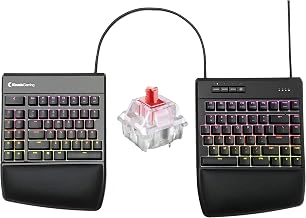
Kinesis Gaming Freestyle Edge RGB Split Mechanical Keyboard, Cherry MX Linear Red, Ergonomic, TKL
A true split mechanical keyboard solves the problem of forced shoulder rotation during long typing sessions. The Kinesis Gaming Freestyle Edge RGB allows you to place each half exactly where your hands rest naturally, reducing the strain that comes from keeping wrists angled inward on a traditional board.
Cherry MX Red linear switches provide smooth, quiet keystrokes without the tactile bump found in other switch types. This makes the board suitable for both rapid typing and gaming, though users who prefer feedback with each press may find the linear action too subtle. The tenkeyless layout removes the number pad, freeing up desk space and allowing your mouse hand to stay closer to the typing position.
Each half includes a detachable padded palm support that clips onto the frame. The padding is firm enough to hold your wrists steady without creating pressure points, and removal is quick when you prefer a lower profile. The split halves can separate up to a larger amount, giving flexibility to match shoulder width and desk layout.
RGB backlighting is programmable through the onboard SmartSet software, letting you assign colors by key or create lighting effects. The lighting is functional for low-light environments but adds no ergonomic benefit; if you work in well-lit spaces, you may not use it.
This keyboard requires a wired USB connection - no wireless or Bluetooth option exists. Cable management becomes more complex with two halves, and the lack of wireless limits portability. The split design also demands an adjustment period. Touch typists adapt faster, but hunt-and-peck users often struggle with the physical gap between halves.
The price sits higher than non-split ergonomic boards, reflecting the mechanical switches, customizable lighting, and modular palm supports. For users committed to split ergonomics and willing to invest in mechanical quality, the Freestyle Edge RGB delivers a tangible improvement in wrist alignment and typing comfort over time.
- ✅ Cherry MX Red linear switches offer smooth, quiet mechanical key feel
- ✅ True split design adjusts up to 20 inches apart for natural shoulder positioning
- ✅ Detachable padded palm supports provide stable wrist cushioning
- ✅ Tenkeyless layout saves desk space and brings mouse closer to typing zone
- ✅ Programmable RGB backlighting with per-key customization
- ⚠️ Wired-only connection limits portability and complicates cable routing
- ⚠️ Higher price point than non-mechanical ergonomic keyboards
- ⚠️ Split layout requires adjustment period, especially for non-touch typists
- ⚠️ Linear switches lack tactile feedback some users prefer
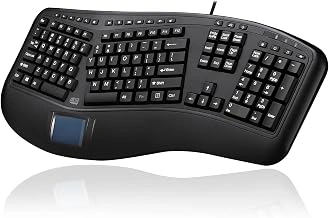
Adesso AKB-450UB Ergonomic Keyboard with Touchpad, Wired USB, Split Key Design
The Adesso AKB-450UB combines split ergonomics with an integrated touchpad, making it a practical option when desk space is tight or you want to reduce repetitive mouse reach. The split key layout angles each hand into a more neutral wrist position, and the cushioned palm rest spans the full width to support both wrists during long typing sessions.
The membrane switches deliver quiet, consistent key presses but lack the tactile feedback and travel depth of mechanical switches. If you prefer crisp, clicky response under your fingers, membrane keys will feel softer and less precise. The fixed split angle works well for most users, though you can't adjust the degree of separation or tenting as you can with fully modular designs.
The built-in touchpad sits between the two key halves, letting you scroll, click, and navigate without lifting your hand to reach for a mouse. This feature shrinks your overall desk footprint and keeps your hands centered, but it does require adapting your workflow - some users find a traditional mouse faster for precision tasks like design or spreadsheet work.
The wired USB connection ensures zero latency and no battery swaps, ideal for stationary setups where you don't need portability. The cable length and plug-and-play design mean you can connect to Windows, Mac, or Linux machines without driver hassles.
This keyboard fits compact workspaces and users who prioritize wrist-neutral positioning and touchpad convenience over mechanical key feel or adjustable ergonomics. If you spend hours typing in a small home office or shared workspace and want to keep your hands closer together, the AKB-450UB delivers functional split support and integrated pointing without demanding extra desk real estate.
- ✅ Split key design promotes neutral wrist positioning
- ✅ Integrated touchpad reduces mouse reach and desk footprint
- ✅ Full-width cushioned palm rest supports both wrists
- ✅ Wired USB connection with zero latency and no batteries
- ✅ Quiet membrane switches for shared workspaces
- ⚠️ Membrane keys lack mechanical precision and tactile feedback
- ⚠️ Fixed split angle with no adjustability for tenting or separation
- ⚠️ Built-in touchpad may not suit users who prefer traditional mouse workflows
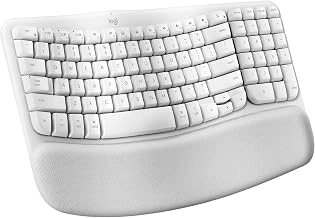
Logitech Wave Keys for Mac Wireless Ergonomic Keyboard - Off White, Cushioned Palm Rest, Bluetooth
Mac users looking for wireless ergonomic support without the steep learning curve of a split keyboard will find the Logitech Wave Keys for Mac a practical middle ground. The wave-contour key layout places keys in a gentle undulating pattern that encourages a more neutral hand position than a flat board, while the integrated cushioned palm rest provides consistent wrist support across long typing sessions.
The Bluetooth connection frees your desk from cables, and the Mac-optimized layout includes familiar keycaps and shortcuts tailored to macOS - Command, Option, and function keys land where Mac users expect them. Typing feel is quiet and cushioned thanks to membrane switches, which some users prefer for long-form writing but won't satisfy those who want the tactile feedback of mechanical switches.
Battery life extends to months on a single charge, reducing the maintenance overhead common with wireless peripherals. The wave design is subtle compared to aggressively split or tented keyboards, making it easier to adapt if you're new to ergonomic layouts. However, this moderation also means the ergonomic benefit is less pronounced - users with significant wrist discomfort may need a more dramatic split or adjustable tenting.
Compatibility is a clear trade-off: the Mac-specific layout and keycap legends make this keyboard less practical for Windows or Linux environments. If you regularly switch between operating systems, the function-key mapping and modifier labels will create friction. The wave contour is fixed, so you can't adjust the angle or separation to match your shoulder width or desk setup.
This keyboard suits Mac users who value wireless convenience and a gentle ergonomic curve that doesn't require relearning typing patterns. It works well for writers, remote workers, and anyone logging hours in text editors or email who wants subtle wrist support without mechanical complexity or a sprawling footprint. If you need deeper ergonomic intervention or plan to use the keyboard across multiple platforms, consider a more adjustable or OS-agnostic option instead.
- ✅ Wave-contour layout encourages neutral hand positioning without split retraining
- ✅ Integrated cushioned palm rest provides consistent wrist support
- ✅ Bluetooth wireless with months-long battery life
- ✅ Mac-optimized keycaps and shortcuts for seamless macOS use
- ✅ Quiet membrane switches suitable for long typing sessions
- ⚠️ Mac-specific layout limits compatibility with Windows and Linux
- ⚠️ Wave contour is fixed with no adjustable tenting or separation
- ⚠️ Membrane switches lack tactile feedback of mechanical options
- ⚠️ Less aggressive ergonomic benefit than full split designs
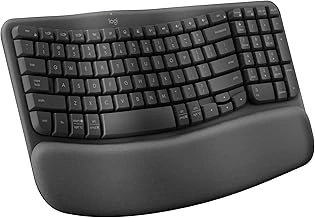
Logitech Wave Keys Wireless Ergonomic Keyboard - Graphite, Cushioned Palm Rest, Bluetooth, Logi Bolt
Remote workers on tight budgets can find comfortable wireless ergonomics without breaking the bank. The Logitech Wave Keys delivers a gentle wave key layout and integrated cushioned palm rest at $59.99, making it the most affordable option in this lineup while still offering dual wireless connectivity through Bluetooth and the included Logi Bolt USB receiver.
The wave design curves the keys in a subtle arc rather than splitting the layout into two halves. This approach provides a more natural hand position than flat keyboards without requiring the adjustment period that true split designs demand. The cushioned palm rest attaches to the bottom edge and offers soft support during long typing sessions, though the wave curve is milder than what you'll find on aggressive split models.
Quiet membrane keys keep noise levels down in shared spaces, and the keyboard works seamlessly across Windows, Mac, Chrome OS, and Linux. Battery life runs on two AAA cells rather than a rechargeable pack, so you'll need to keep spares on hand. The Logi Bolt receiver occupies one USB port but delivers stable wireless performance when Bluetooth isn't preferred.
Cross-platform compatibility stands out here: pair up to three devices and switch between them with dedicated keys. The compact footprint saves desk space compared to full split keyboards, and the graphite colorway blends into most workstation setups. At 4.3/5 stars, users appreciate the balance of comfort features and wireless convenience at this price point.
Trade-offs matter if you type heavily all day. The membrane switches lack the tactile feedback and durability of mechanical options, and the gentle wave won't provide the same wrist angle correction as dedicated split keyboards. The non-rechargeable batteries add recurring cost over time. But for remote workers who need wireless ergonomics on a budget and don't require mechanical keys, this keyboard delivers solid comfort and connectivity without asking for premium dollars.
- ✅ Most affordable wireless ergonomic option at $59.99
- ✅ Dual connectivity: Bluetooth and Logi Bolt USB receiver
- ✅ Integrated cushioned palm rest included
- ✅ Cross-platform support for Windows, Mac, Chrome OS, and Linux
- ✅ Quiet membrane keys for shared workspaces
- ✅ Pair up to three devices with easy switching
- ⚠️ Membrane switches lack tactile feedback of mechanical keys
- ⚠️ Wave curve is milder than dedicated split designs
- ⚠️ Battery uses AAA cells, not rechargeable
- ⚠️ Less aggressive wrist angle correction than split keyboards
Split vs. Wave: Which Layout Reduces Wrist Strain More Effectively?
When your wrists ache during or after long typing sessions, keyboard layout becomes more than a preference - it dictates how far your hands deviate from a neutral position. Two families of ergonomic design tackle wrist strain differently: split layouts that physically separate the key clusters, and wave-contour layouts that curve a single board beneath your palms.
Split keyboards like the Kinesis Freestyle Pro and Adesso Tru-Form 150 divide the typing surface into left and right halves, encouraging shoulder-width hand placement. This separation eliminates ulnar deviation - the sideways bend at the wrist that happens when your hands angle inward on a traditional flat board. By positioning each hand directly in line with its forearm, split designs reduce the twisting force that builds over hours of repetitive motion. The tradeoff is real: you must relearn where your fingers land, especially for keys near the center gap, and the adjustment period can last several days to a few weeks depending on your typing habits.
Wave designs, including both Logitech models in this guide, keep all keys on a single surface but sculpt a gentle curve beneath your fingers. The wave contour subtly rotates your wrists outward without demanding a dramatic shift in hand position. You can start typing immediately with minimal adaptation because the key spacing and letter placement stay familiar. However, the angle correction is less aggressive than a true split, so users with moderate to severe wrist discomfort may find the relief insufficient compared to a wider separation.
Match layout to discomfort level and patience. If your wrists hurt frequently or you've dealt with repetitive strain symptoms, the split geometry offers the most dramatic postural improvement - provided you commit to the retraining period. If discomfort is mild or intermittent and you need productivity on day one, a wave contour delivers noticeable support without disrupting your existing muscle memory. Neither layout guarantees freedom from strain; both require proper desk height, monitor placement, and regular breaks to sustain comfort across truly long sessions.
Mechanical vs. Membrane Switches: Comfort and Noise Trade-Offs
Mechanical keyboards use individual spring-loaded switches beneath each key, while membrane designs rely on a continuous rubber or silicone layer that compresses to register presses. The difference matters for comfort during extended typing sessions and noise levels in shared spaces.
Mechanical switches, like the Cherry MX Brown variants found in the Kinesis Freestyle Edge RGB, require a consistent actuation force throughout their travel distance. Each keystroke produces audible click feedback and a tactile bump, which many typists find satisfying and precise. This feedback reduces bottom-out impact because you know the key has registered before reaching the end of travel. However, the acoustic signature carries - colleagues within a few feet will hear your typing, and open offices may require dampening mats or O-rings to manage sound.
Membrane keyboards such as the Adesso Tru-Form and Logitech Ergo K860 press more quietly. The rubber dome collapses with less noise, making them suitable for conference calls or cubicle environments. Actuation force can feel softer at first but often becomes inconsistent as the membrane ages. Keys may develop a mushy or sticky sensation after months of heavy use, and the layer itself can tear or lose elasticity, shortening overall keyboard lifespan.
Durability also diverges. Mechanical switches are rated for 50 million to 100 million keystrokes per switch, while membrane domes typically reach 5 million to 10 million cycles. If you type eight hours daily, a mechanical board will outlast a membrane model by several years, though the upfront cost runs higher.
Choose mechanical switches if you prioritize tactile consistency, long-term reliability, and don't mind moderate typing noise. Opt for membrane if workspace quiet matters more than key feel and you plan to replace the keyboard within two to three years of intensive use.
Wired vs. Wireless: Connection Reliability for Remote Work
Wired USB keyboards like the Kinesis Freestyle2 and Adesso Tru-Form deliver constant power and zero-latency input, making them reliable for high-stakes transcription, coding sprints, or any scenario where dropped keystrokes aren't acceptable. You never manage batteries, and the connection never sleeps or requires re-pairing. The tradeoff is visible cable clutter and reduced desk flexibility - moving the keyboard or switching between workstations means unplugging and re-routing cables.
Wireless models, including the Logitech Ergo K860 with its Logi Bolt receiver and the Logitech Wave Keys with Bluetooth, remove the cable entirely. This frees up desk space, simplifies hot-desking, and creates a cleaner aesthetic. Logi Bolt offers more stable connectivity than standard Bluetooth, reducing interference in crowded wireless environments. The cost is battery management: rechargeable models require periodic charging, and replaceable-battery designs need fresh cells every few months. Occasional reconnection after sleep mode or interference can also interrupt flow.
Wired connections excel when uptime and instant response matter most - think legal transcription, software development, or data entry where every keystroke counts. Wireless makes sense for remote workers who move between rooms, share desks, or value a minimal footprint over absolute reliability. If you work in a fixed location with consistent power needs, wired removes one variable. If you prioritize portability and desk aesthetics, wireless flexibility may outweigh the battery routine.
Palm Rest Padding: Foam Density and Longevity Considerations
Palm rest construction varies significantly among the keyboards in this guide, affecting both immediate comfort and how well the cushion holds up after months of use. The padding materials range from memory foam and gel inserts to high-density polyurethane, each wrapped in leatherette, woven fabric, or soft-touch synthetic covers.
Softer foam compresses easily under the weight of your wrists, creating a plush feel during the first few weeks. That initial comfort comes with a tradeoff: daily pressure causes the cells to collapse, and most softer padding flattens noticeably within six to twelve months. Once compressed, the rest offers less height and cushioning, which can change your wrist angle and reduce the support you originally purchased the keyboard to provide.
Firmer, high-density foam maintains its thickness much longer, often staying close to original height for two years or more of regular typing. The feel is less pillow-like at first, but the consistent support means your wrist position remains stable over time. Some users find firmer padding less comfortable during short sessions, though many adapt within a week as hand position stabilizes.
Cover material also plays a role in longevity. Leatherette wipes clean easily but can crack or peel after a year of skin contact and oil exposure. Fabric covers breathe better and resist cracking, yet they absorb moisture and can show wear or discoloration. Gel layers add a cooling sensation and distribute pressure, but gel can migrate within the insert or harden with temperature changes.
Because built-in palm rests are integrated into the keyboard chassis, replacing worn padding is impractical or impossible without replacing the entire unit. If you type for several hours each day, prioritizing firmer foam density at purchase will extend the useful life of the rest, even if it sacrifices some initial softness. For lighter use, softer padding may provide adequate comfort without significant compression before you upgrade your keyboard for other reasons.
Desk Space and Keyboard Footprint Planning
Ergonomic keyboards with built-in palm rests take up significantly more desk space than standard keyboards, and split designs multiply that footprint when positioned for optimal arm alignment. Before choosing a model, measure your desk depth from front edge to monitor stand - most ergonomic boards with integrated rests need 10 to 12 inches of depth, compared to 6 or 7 inches for a typical flat keyboard.
Split keyboards like the Kinesis Freestyle2 and Adesso Tru-Form require careful planning. When the two halves sit side by side in a narrow stance, the overall width remains close to standard. Widen the separation for shoulder-width positioning, and you may need 24 to 28 inches of clear horizontal space, which pushes your mouse farther to the right and can crowd multi-monitor setups or desk-mounted documents. If you use an external numeric keypad, trackball, or large mouse mat, sketch out the layout before committing to a wide split configuration.
Wave-contour keyboards such as the Logitech Ergo K860 occupy less width but add depth because the palm rest extends several inches forward. The K860 measures roughly 18 inches wide and 9 inches deep, which fits most desks but leaves less room between keyboard and body if you sit close to the edge. Corner desks and L-shaped workstations usually accommodate these boards without issue, while shallow writing desks or laptop trays may feel cramped.
Check clearance under monitor arms and desk shelves as well - thick split modules or raised tenting wedges can interfere with articulating arms set low. If your available footprint is tight, a compact wave design will deliver wrist support without forcing you to reorganize cables, speakers, or desktop storage every time you type.
Frequently Asked Questions
Can you use a separate wrist rest instead of a built-in padded one? Yes, but matching the height and angle to your keyboard takes trial and error, and misalignment can create pressure points or awkward wrist extension. Built-in rests are engineered to sit flush with the typing surface, making consistent positioning easier.
Do all ergonomic keyboards require a learning curve? Split layouts usually do - expect a few days to adjust your muscle memory as each hand stays in its own zone. Wave and contoured designs adapt faster because the keys remain close together, so typing feels more familiar from the start.
Are mechanical switches louder during video calls? Yes, clicky and tactile switches produce audible feedback that microphones pick up easily. If you're on calls often, use push-to-talk controls or choose a membrane or scissor-switch keyboard for quieter operation.
How long do palm rest cushions last? Six months to two years, depending on foam density and how many hours you type each day. Memory foam compresses faster under constant pressure, while firmer gel or leatherette surfaces hold their shape longer. Watch for flattening or cracking as signs it's time to replace the keyboard or add an aftermarket rest.
Can you connect wireless keyboards to multiple devices? Logitech models with multi-device pairing let you switch between a laptop, tablet, and desktop using a button or dial. Most other wireless boards pair with one device at a time and require manual re-pairing to switch.
Do these keyboards work with standing desks? Yes, but measure your keyboard tray depth and total keyboard thickness before buying. Split designs and models with thick palm rests need more front-to-back space, and standing positions magnify any tray-height mismatch. Adjust the tray so your elbows stay near ninety degrees and your wrists float level with the keys.
Final Recommendations: Matching Keyboard to Your Typing Profile
Choosing the right ergonomic keyboard with a built-in palm rest depends on how you type, where you work, and which features matter most during long sessions. The Kinesis Freestyle Edge RGB fits mechanical keyboard enthusiasts and gamers who want per-key RGB lighting, full split adjustability, and tactile switches - especially if desk space allows a wider footprint and you value customizable tenting. The Adesso AKB-450UB works well for compact workstations where an integrated touchpad saves space and you need a narrower split layout that still provides cushioned wrist support without adding separate accessories. If you work primarily on a Mac and prefer wireless simplicity with minimal adjustment, the Logitech Wave Keys for Mac delivers familiar key spacing, Bluetooth connectivity, and a contoured wave design that reduces relearning time. For budget-conscious setups across Windows and Mac, the Logitech Wave Keys Graphite offers the same wireless convenience and fixed wave layout at a lower price, making it a practical choice when you want built-in cushioning without spending extra on platform-specific branding.
Built-in palm rests eliminate the need to shop for separate accessories or match third-party cushion heights, but they also lock in the density and thickness you get at purchase. If you prefer firmer support, confirm the rest feels adequate before committing; if you like plush memory foam, verify the padding thickness matches your expectation. Split keyboards require more desk real estate and a short adjustment period, while wave designs keep keys closer together and feel more familiar from the first session. Mechanical switches add audible feedback and slightly taller keycaps, which some typists prefer for accuracy, though membrane options stay quieter in shared spaces. Wired models maintain consistent connectivity, and wireless versions reduce cable clutter at the cost of periodic charging or battery swaps.
For most users seeking a balance of comfort, compatibility, and value, the Logitech Wave Keys Graphite offers broad operating system support and wireless convenience in a fixed-wave layout that requires minimal setup. If your workflow demands split geometry or mechanical feedback, prioritize the Kinesis Freestyle Edge RGB or Adesso AKB-450UB based on whether RGB customization and gaming features or touchpad integration and compact width matter more. Match the keyboard to your actual typing environment, cushion preference, and connectivity needs rather than chasing features you will not use daily.